
Ahoy, my friend!
Welcome to the WordPress SEO jungle.
Out here, we eat Pink Ladies for breakfast, copperheads for brunch, and some of y’all heads for lunch.
We have eyeballs dipped in chocolate for snacks, and your guts are what’s for dinner.
Of course I’m joking, but it sounds tough, right?
See, this is what two-bit, washed-out SEO gurus want you to believe 🤡
They want you to think WordPress SEO is a tough nut to crack.
You know, so that they can sell you some silver bullet, and whatnot.
What a load of bull.
In real life, SEO for WordPress websites is the stuff of fourth-graders.
Chuck Norris (bless his soul) being himself in Expendables 2 is harder than SEO.
Heck, old men dozing off on park benches is harder than SEO. And these geezers can punch out in the eye of a tornado.
My point is: beginner WordPress SEO is easy.
It doesn’t matter if you start today. You can rank high in Google without sacrificing virgins.
Oh, by the way, the “Pink Ladies” I mentioned earlier are apples. Yes, the fruit.
It’s a classic example of how self-appointed gurus aim to confuse you with SEO jargon.
In addition, most beginner WordPress SEO tutorials don’t treat you like the newbie you are.
A greenhorn with nothing but a hot driving desire to learn.
No. This is not what they do.
Instead, they throw you in the deep end and let you sink.
Can you swim? Not their problem.
Few, if any, show you how to snag the coveted #1 position in Google.
Most throw content at you like you’re an expert of sorts and then leave you to burn.
Luckily for you, this isn’t one of those guides.
I’ll show you how I consistently rank first on Google.
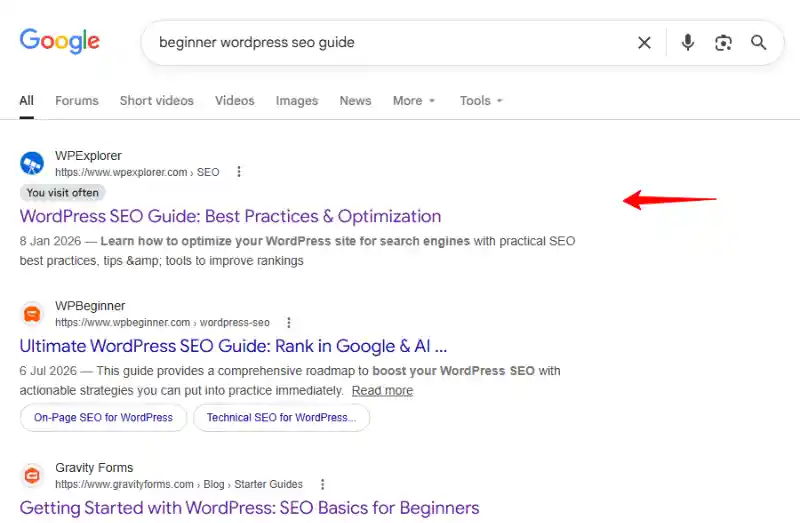
I’ll also throw in a couple of examples from real brands (like WPExplorer above) for good measure.
Sounds good? Great.
Walk with me.
Table of Contents
- WordPress SEO for Beginners (2026): The Only Guide You Need
- What is WordPress SEO?
- Why does SEO work?
- On-Page WordPress SEO
- Off-Page WordPress SEO
- Technical WordPress SEO
- A Word on AI SEO for WordPress Beginners
- White Hat SEO vs Black Hat SEO
- How Google Ranks Content in Search
- WordPress SEO Tips for Beginners
- WordPress SEO Settings
- SEO-Friendly URLs (Permalinks)
- Pick the Right WordPress SEO Theme
- Pick a WordPress SEO Plugin
- Connecting WordPress Site to Google Analytics & Google Search Console
- Improve Website Speed for WordPress SEO
- Define Your Target Audience for WordPress SEO
- WordPress SEO Keyword Research
- Content is King of WordPress SEO
- FAQs
- Conclusion: Your WordPress SEO Journey Starts Now
WordPress SEO for Beginners (2026): The Only Guide You Need
I will be sharing my own SEO experiences and proven Google techniques to rank higher in search results and AI overviews.
Why should you listen to me among countless WordPress SEO experts on the Internet?
Well, I have been helping WordPress, SaaS, and tech businesses scale traffic and revenue for over 14 years.
And I mainly use search engine optimization (SEO) to deliver consistent results month after month.
For this reason, I have learned a great deal about SEO in its various forms, including on-page, off-page, technical, and AI SEO.
I also optimized countless articles to rank first on Google and AI search tools like ChatGPT, Google AI Overviews, and Microsoft Copilot.
But I’m not here to gloat. I’m here to help you rank your WordPress site first in search engines using white-hat SEO techniques.
This way, you can generate organic traffic to hit your revenue goals as a freelancer, small business, or big corporation.
Let’s start with the basics.
What is WordPress SEO?
WordPress SEO is the process of improving your website so it appears at the top of Google, Bing, and AI search results when people search for topics related to your content.
SEO is short for search engine optimization.
And it’s exactly as it sounds.
SEO is the practice of making your website visible in search engines like Google and Bing.
You “optimize” your website and content, making it easy for search engines to find and store in their system (what people call “crawl” and “index”).
That is, search engines like Google crawl (scan) the Internet (including your website) and index (store) the results in their systems.
When someone searches for something, Google shows them the most relevant result.
The goal of SEO is to appear first in search engine results pages (SERPs) when someone searches for your offer.
“Offer” here means your content, product, or service.
Why does SEO work?
Nearly everybody turns to search engines whenever they need information.
And while we have several options, Google is where most people go.
You’re probably a huge fan of Google yourself, right?
Did you search “beginner WordPress SEO guide” on Google to come here? Exactly my point.
You’ve probably told someone to “Google it” when they needed something.
Also, what works for Google usually works for Bing and other search engines, so let’s focus here.
But before the nitty-gritty, here’s a quick tip to keep in mind as we chat.
Helpful, reliable, and people-first content is the foundation of SEO.
You need high-quality content that doesn’t violate Google’s search guidelines.
Without great content, your SEO efforts are futile.
Don’t worry, it’s easy to create amazing SEO content that ranks in Google.
We’ll learn more in the guide.
For now, let us focus on the three pillars of WordPress SEO in 2026:
- On-pageWordPress SEO.
- Off-page WordPress SEO.
- Technical WordPress SEO.
- Bonus: AI SEO.
Let’s go over each briefly.
On-Page WordPress SEO
On-page SEO is the first branch of search engine optimization. And where you’ll spend 60% of your SEO budget, efforts, and time.
If you don’t have on-page SEO down pat, you’re screwed sideways 😀
People won’t find your website, and your traffic and revenue goals will remain just that – goals.
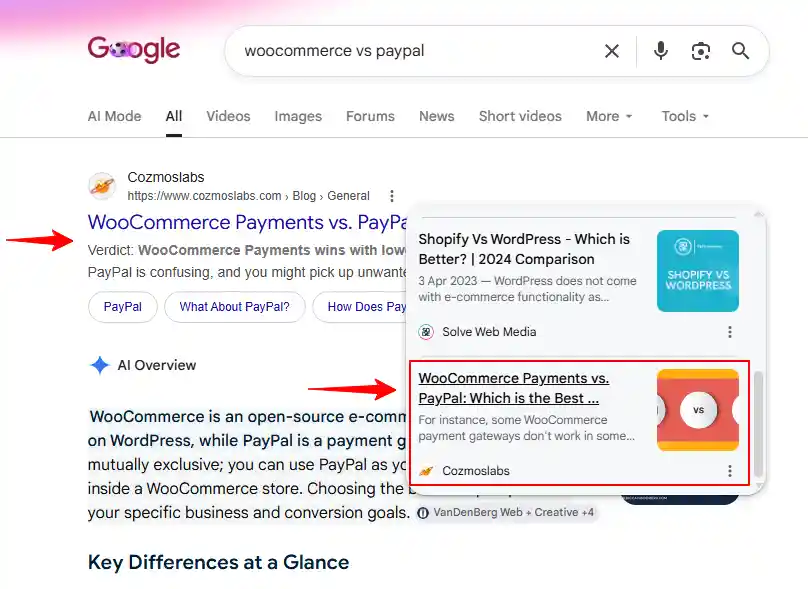
So, what is on-page SEO?
On-page SEO is every optimization tweak you make to your website content.
The aim is to make your website content search engine-friendly.
You want search engines to see that you offer valuable, relevant, and user-friendly content.
Here are some proven on-page SEO tactics for WordPress sites:
- Define your target audience – You can’t write for the entire universe and expect results.
- Conduct keyword research to create effective content (many people either forget or ignore this part).
- Create relevant, valuable, and people-first content regularly. Google loves high-quality and fresh blog posts and website content.
- Set focus keywords for posts and pages. The keyword is still a vital Google ranking factor.
- Write clear, keyword-rich titles and meta descriptions.
Oh, but there is more…
- Use primary and secondary keywords for variety and volume, and to avoid over-optimization (keyword stuffing).
- Add multimedia content to spice things up and alt text for images.
- Use external and internal linking.
- Make your content readable and scannable. Use headings, bullet lists, and so on.
- Et cetera.
The second item is the most vital point on this list.
If you don’t post high-quality content consistently, your SEO rankings will flop.
You will go the way of the dinosaurs, and I have first-hand proof.
Plus, I have seen websites drop in SEO rankings for neglecting their blogs.
And it’s not because they lack quality content. No.
It’s because the Internet is a fast-paced jungle.
Anyone with newer content will replace you at the drop of a hat.
You must post new articles and update old content. Consistently ⏰
That’s the rub, but I can’t emphasize this enough.
A huge chunk of WordPress website owners struggle with this.
But let’s not get distracted; let’s say a few things about off-page SEO.
Off-Page WordPress SEO
Off-page SEO is techniques you implement outside your website to boost authority, brand awareness, trust, and visibility.
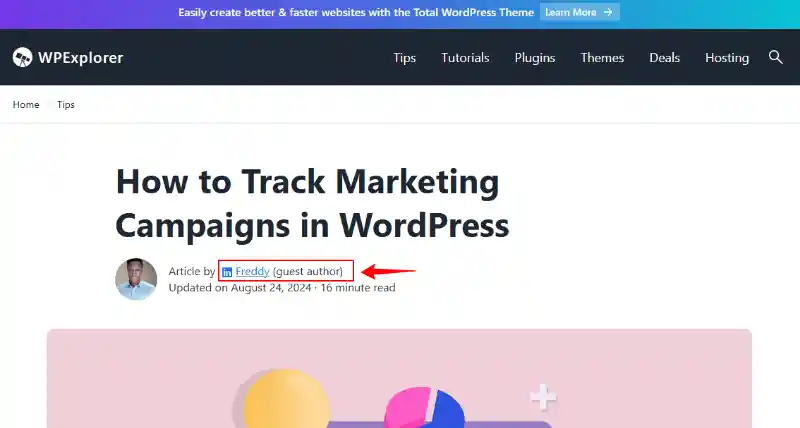
WordPress off-page SEO techniques create external trust signals, which search engines use to rank your content.
For instance, if many high-authority websites link to your article, Google sees this as a vote of confidence and rewards you with higher rankings.
This goes to say that creating helpful, relevant, reliable, and people-first content is also an important part of off-page SEO.
Would people want to link to low-quality content? Absolutely not.
Would people want to share useless junk on social media? I don’t think so.
You will spend 30% of your WordPress SEO budget and time on off-page SEO techniques like:
- Guest blogging – The best way to reach new audiences, drive referral traffic, and create relevant backlinks to your website.
- Participating in Q/A sites and forum discussions – This is especially useful now that AI search tools use forums like Reddit for answers.
- Social media posting – Share your content on platforms like Facebook, LinkedIn, and X to boost brand awareness, visibility, and drive traffic to your site.
- Digital PR – Publish press releases and secure brand mentions on online media outlets. Provide stories, data, and expert insight that editors and journalists want.
And more…
- Join HARO – Short for Help A Reporter Out, HARO is a fantastic platform to help out journalists, reporters, and writers. They usually link back to your site in their articles.
- Local SEO – Engage in efforts such as claiming a free Google Business Profile. Update your service description and ask for reviews!
- Influencer marketing – Reach out to influencers in your niche and start a conversation. They usually have huge followings and could give you a much-deserved boost.
- Create linkable assets – PDF guides, calculators, cheat sheets, checklists, templates, and infographics.
- Etc.
Off-page SEO is all about creating external trust signals so people and search engines feel confident choosing you.
Again, these signals include authoritative backlinks, brand mentions, digital PR, and online reputation signals like reviews.
What’s my favorite off-page SEO technique? It has to be guest blogging. It’s easy to implement and quite effective.
Let’s move on to technical SEO.
Technical WordPress SEO
Technical SEO is fixing your website’s code so search engines and AI tools can easily crawl and index your content.
It’s practically taking a look under the hood and fixing broken links, page speed, robots.txt files, missing title and heading tags, and so on.
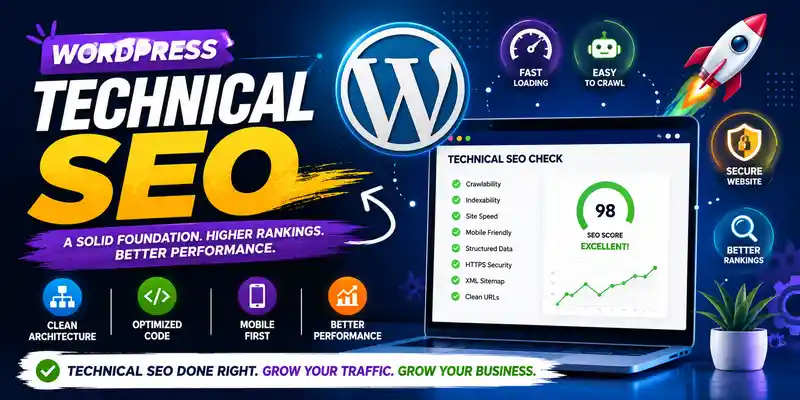
Technical SEO ensures that your site’s pages are accessible, fast, mobile-friendly, and easy for both users and search engine crawlers to navigate.
Says Mert, Lead Technical SEO, SEO Sherpa.
WordPress website owners invest about 20% of their SEO budget and efforts in technical SEO. This is because WordPress is already technically sound SEO-wise.
Most people rank high on Google and other search engines without touching technical SEO at all. That’s the beauty of WordPress.
And when you decide to fix technical SEO, WordPress offers a ton of SEO plugins that make your work easy.
Also, thanks to AI tools, you can vibe-code your own SEO solutions, provided you know what to do.
The point here is: WordPress technical SEO is easy-peasy. You can pull it off in under an hour with the right SEO plugin.
This said, proven technical SEO techniques include:
- Choose the best WordPress host – Work with a good web hosting company for better performance and security.
- Set up your WordPress permalinks – Use a clear URL structure.
- Start with an SEO-ready WordPress theme – Any theme worth its salt in 2026 will be SEO-ready. Top SEO-ready themes include Total (the theme on this site), Avada, and The7.
- Pick the right WordPress SEO plugin – All-time favorites include Yoast SEO, AIOSEO, and SiteSEO.
- Install SSL certificates and use HTTPS instead of HTTP.
- Use tools like Google PageSpeed Insights, GTmetrix, and Pingdom Tools to check and optimize page speed.
And then…
- Fix broken links.
- Improve internal linking to eliminate orphan pages.
- Add sitemap(s).
- Make your website mobile-ready and responsive.
- Fix broken links some more.
- Et cetera.
Unless you’re redesigning your website, you will rarely fix technical SEO.
You’ll rarely change anything once you implement these and other techniques.
Technical SEO is important, even if we allocate 20% of our SEO budget and time.
Scratch that; all three pillars of SEO are important. You can’t focus on one and forget the other two. A solid WordPress SEO strategy must combine all three.
But what about AI SEO?
Yes, what about it?
A Word on AI SEO for WordPress Beginners
AI SEO is short for artificial intelligence search engine optimization. It covers, among other disciplines, answer engine optimization (AEO) and generative engine optimization (GEO).
If you’re wet behind the ears, AI SEO shouldn’t throw you a curveball. It involves optimizing your content to be discoverable in AI-powered search experiences.
In other words, AI SEO involves data analysis and machine learning to enhance SEO.
AI SEO builds on SEO fundamentals — helpful content, technical strength, semantic structure, and authority — but develops them further to align with the way AI systems interpret, summarize, and surface information.
Says Veruska Anconitano, Multilingual SEO and Localization Consultant, and author at Search Engine Land.
And since our focus is Google, what does the search engine giant say about AI search? They must have something to say, right? Especially now that they use AI overviews in search.
We’re bringing our advanced model capabilities to Search with new AI features, enabling you to use agents just by asking a question. We’re also introducing a new, intelligent AI-powered Search box, marking its biggest upgrade in over 25 years.
Said Elizabeth Reid, Vice President, Search, Google Search’s I/O 2026 Update.
That said, Google insists that AEO and GEO are fundamentally still SEO, according to this guide on optimizing for generative features.
To quote the guide,
The best practices for SEO continue to be relevant because our generative AI features on Google Search are rooted in our core Search ranking and quality systems. These features rely on AI techniques to highlight content from our Search index…
And…
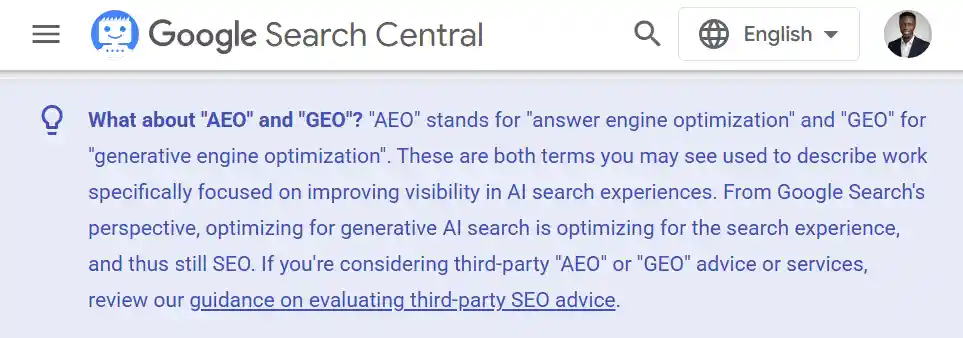
From the guide, apply the following SEO best practices to AI search.
- Valuable, non-commodity content – Create unique, compelling, and useful content for your target audience – helpful, reliable, and people-first content.
- Provide a unique point of view (POV) – Create content from in-depth, firsthand experience rather than regurgitating what’s already available online.
- Post content in an organized manner – People love content that’s easy to navigate. Use sections, headings, paragraphs, etc.
- Add high-quality images and videos – Self-explanatory, much?
- Focus on what your target audience wants, but don’t overdo it.
Also…
- Make sure your content follows Google’s Search Essentials and spam policies if you’re using AI content tools.
- Meet Google Search technical requirements.
- Follow crawling best practices.
- Provide a great user experience.
- Reduce duplicate content.
- Optimize your local business and ecommerce details where applicable.
Also, from the same guide, don’t overfocus on:
- LLMs.txt and other “special” markup.
- “Chunking” content, i.e., breaking content into tiny pieces for AI systems.
- Rewriting content specifically for AI.
- Seeking inauthentic “mentions.”
- Structured data.
It’s clear. To appear in AI overviews, focus on fundamental SEO best practices. What takes you to the first page of Google will also earn you AI citations.
To rank high on Google and AI search, combine on-page, off-page, and technical SEO. Most importantly, create helpful, reliable, and people-first content. Also, make sure you read the Search Quality Rater Guidelines.
White Hat SEO vs Black Hat SEO
I keep mentioning SEO best practices in this beginner’s WordPress SEO guide. These are the legit SEO tactics you should use to rank higher in Google.
Every SEO technique we discuss in this WordPress SEO guide falls under white hat SEO. Plus every other SEO best practice Google recommends.
They are the acceptable SEO techniques you must abide by if you want to shine in Google Search and AI tools.
White hat SEO creates real value that Google and AI tools reward with better rankings.
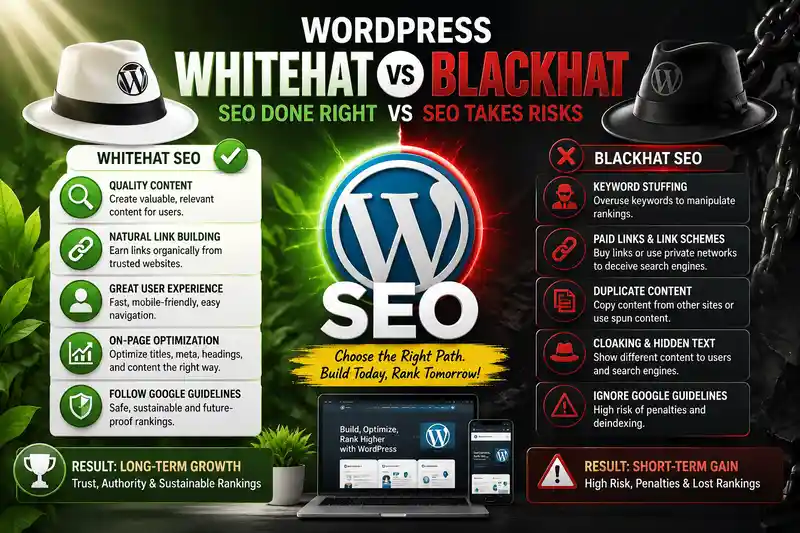
On the other hand, we have black hat SEO. This represents all SEO techniques meant to game search engines and AI tools.
That is, all shady tactics unscrupulous SEOs use – not to create value – but merely to manipulate Search rankings.
Black hat SEO will get you into trouble with Google. The search engine will penalize and deindex your content if you game the system.
And if you rub Google the wrong way, you can say goodbye to free organic traffic and all the good things that come with it, aka revenue.
Avoid – like the plague – Black hat SEO techniques like:
- Buying links to manipulate Google Search rankings – This is quite common; you might think it’s harmless, but avoid it completely, even if the links seem to have high domain authority (DA). Don’t do it.
- Cloaking – Involves showing different content to search engines and people. For example, showing finance content to Google and diet pills to people. Why would you even want to do this? That’s right, it only makes sense to shady search engine optimizers.
- Keyword stuffing – Write helpful, reliable, and people-first content. Have a conversation with your target audience. While keywords still matter, don’t overdo it to the point where your content becomes unreadable. Keep keyword density below 5%.
- Private blog networks (PBNs) and linking schemes built purely to influence a website’s link authority in search.
And..
- Large-scale guest blogging campaigns created solely for backlinks.
- Spammy directories and low-quality websites with no real audience.
- Comment form or forum spam and automated link drop. Don’t do it.
- Over-optimized anchor texts.
- Large-scale link exchanges. Avoid “I will link to you if you link to me” schemes.
- And much more, as outlined in the Google Spam Policies guide.
Stick to white hat SEO, and you will build a solid search ranking profile that drives traffic and revenue for years.
Let us move on to the next section.
How Google Ranks Content in Search
Now that you know what SEO is and why it’s important to stick to white-hat SEO techniques, perhaps you’re wondering how Google finds and ranks your content in search.
Here’s a short video that accurately summarizes how Google Search works.
Video Link: https://youtu.be/0eKVizvYSUQSide Quest: You can watch a full 58-minute Google Documentary on YouTube.
We touched on this area earlier in the guide, so I won’t go into details. Besides, the above video does a pretty good job.
You can also explore the world of Google Search, as well as this in-depth guide to how Google Search works.
Having this knowledge helps you spot crawling issues, get your content indexed, and optimize your site’s appearance in search results.
That said, Google Search works in three main stages.
- Crawling – Earlier, we said Google scans the Internet to find information. What that means is Google downloads a copy of your website (text, images, videos, and other content) using software known as Googlebot (also known as a web crawler, spider, or bot).
- Indexing – Google then sorts and stores this information in a massive database (the Google Index) that runs on millions of computers worldwide.
- Serving search results – When someone searches in Google, Google surfaces the content most relevant to that search query based on several ranking factors.
That’s right, there are many ranking factors, but creating high-quality content and following SEO guidelines will keep you on the good side of Google.
With the foundation set, let us drill down into the details of WordPress SEO.
After all, we are looking at how to optimize a WordPress site to scale traffic and revenue with SEO.
Still, many of the SEO techniques we’ve discussed above apply to all types of websites, no matter the content management system (CMS) you use.
Back to WordPress.
WordPress SEO Tips for Beginners

As I’ve mentioned several times, optimizing your WordPress site for SEO as a beginner is as easy as pie.
You don’t need expensive tools or special technical knowledge. Create helpful, reliable, and people-first content, and follow Google’s SEO guidelines.
To extract the most value from this guide, we’ll split this section into the following subsections:
- WordPress SEO Settings – Permalinks, SEO themes, SiteSEO plugin, Google Analytics and Google Search Console, and more.
- Define Target Audience – Why starting without a target audience delays WordPress SEO results for beginners.
- WordPress Keyword Research – The meat of your SEO efforts.
- Content is King – How to create helpful, reliable, and people-first content, and rank first on Google.
- And so much more! The idea is to make this the only beginner WordPress SEO guide you’ll ever need.
WordPress SEO Settings
There is a reason WordPress is the most popular CMS globally. Many sources, including W3Techs, say the platform powers about 42% of all websites.
According to BuiltWith, over 985K WordPress websites were launched last month (June, 2026) alone, including some big-name brands.
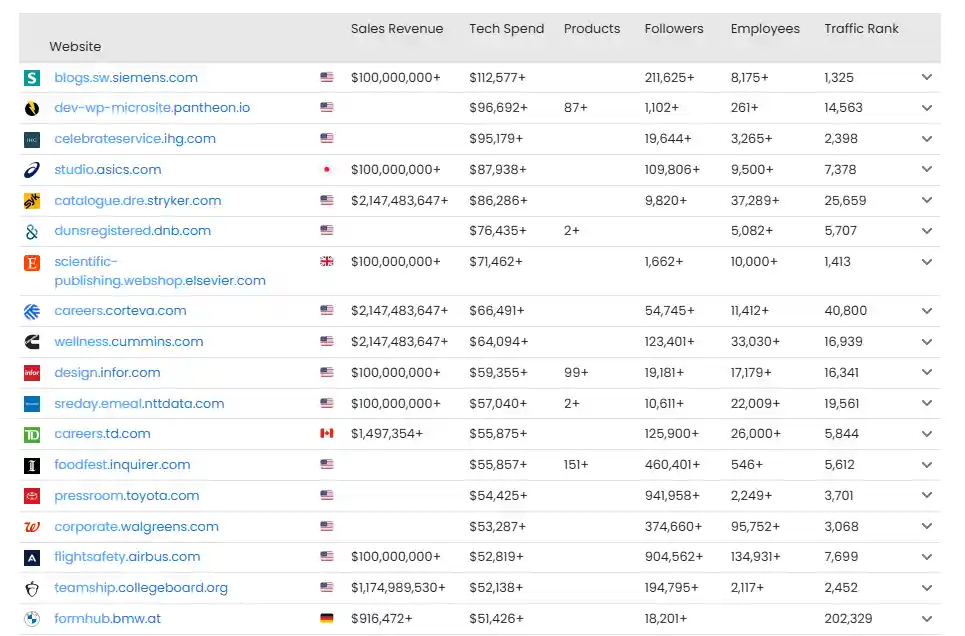
Care to guess why that is? To save you the trouble, WordPress is incredibly easy to use and customize. It’s free, too!
On top of that, WordPress is the best website builder for SEO overall, according to AISEO.
In my experience, nothing beats self-hosted WordPress. Its customization features let you build any website you want. It has tons of SEO plugins and themes to help create a professional website for your small business.
Says Gabriela Jhean, a creative and results-driven SEO specialist and valued contributor for AISEO Trends.
And while WordPress is a powerhouse, a lot of your SEO success comes from your content and how you set everything up.
Let’s start.
SEO-Friendly URLs (Permalinks)
I started with this point for WordPress SEO beginners who don’t have any blog content.
A uniform resource locator (URL, in short) is the address of a page, post, category, or any other content on your website.
For instance, the URL for this article is https://vistawriting.com/beginner-wordpress-seo-guide/.
You can see your post/page URL in your browser’s address bar.

In WordPress, URLs are called permalinks (for permanent links), and they play two main roles.
First, a well-written permalink tells Google and other search engines what your post is about. This is useful for SEO.
For instance, example.com/orange-juice-recipe tells Google the page is about making orange juice. example.com/orange would mean something else entirely.
Or confuse the search spiders. Is the page about the color or the fruit? Perhaps Orange County? Do you get my drift?
A relevant and keyword-rich URL is an SEO best practice. Just don’t overdo it. And keep URLs short.
Secondly, and this is important, a great URL that is easy to read tells human visitors what your post is about. Clean and short URLs are also easier to remember.
URLs appear in search results and other places where human readers see them. Creating relevant and keyword-rich URLs boosts your click-through rates.
Note: If you’ve been creating content for months and Google has already indexed your articles, you need to implement 301 redirects after changing your URL structure to preserve the SEO value of the posts.
Optimize WordPress URL Structure
By default, WordPress permalinks are ugly (for lack of a better word) and not SEO-friendly. Not to worry, however, because you can fix this in a minute.
Navigate to Settings → Permalinks in your WordPress admin dashboard.
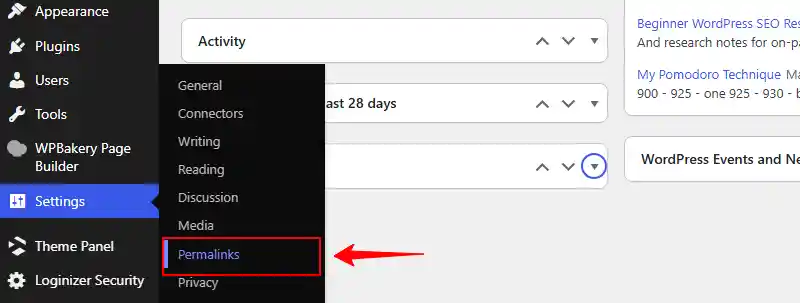
You have several options under the Permalink Structure section. The first (Plain) and fourth (Numeric) options are absolutely useless for WordPress SEO.
Pick Post Name and click Save Changes at the bottom of the page.
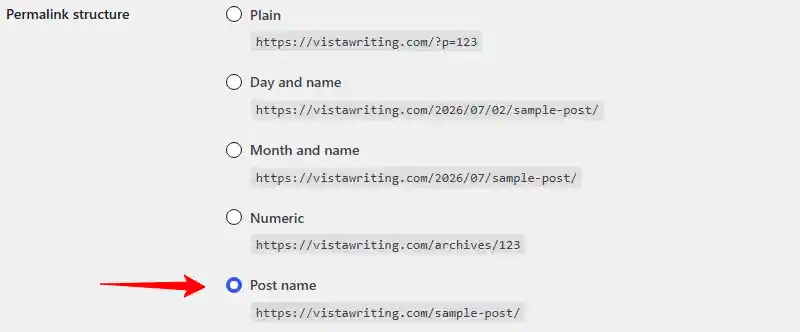
And that’s it! You now have SEO-friendly WordPress URLs.
If need be, you can edit URLs for each post within the Gutenberg editor.
On the right sidebar, click on the post’s slug (URL) to edit and save your changes.
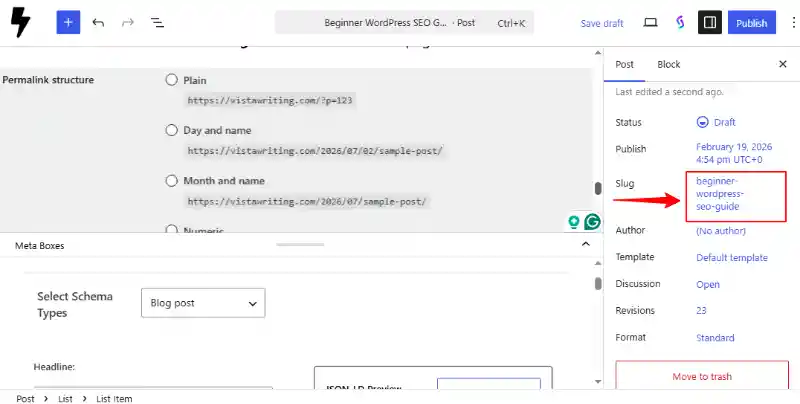
Remember to include your primary keyword in the URL where applicable and keep it short.
While at it, ensure you’re not discouraging search engines from indexing your website.
Encourage Search Engines to Index Your Website
WordPress allows you to discourage search engines from crawling and indexing your website during development.
You will have a difficult time ranking on Google if you leave this feature turned on.
It’s an innocent mistake that anyone can make during launch. Besides, your WordPress website developer might have forgotten to mention it.
What to do?
Navigate to Settings → Reading.
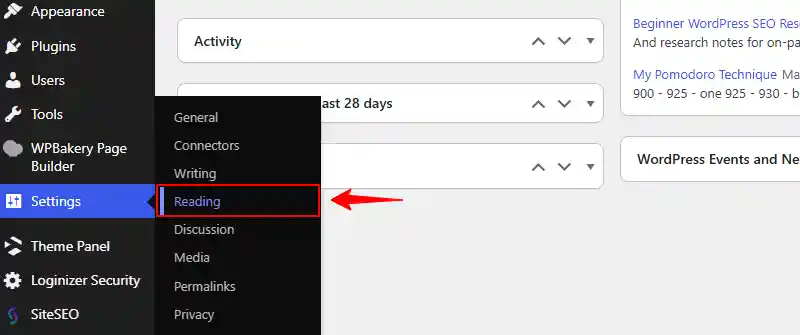
Next, uncheck Search engine visibilityand click Save Changes.

That out of the way, how do you choose the right SEO-ready WordPress theme and plugin for your website’s success?
Pick the Right WordPress SEO Theme
The WordPress ecosystem is home to tens of thousands of themes of all shapes and types.
Suffice it to say, WordPress themes – whether free or paid – are not built equal.
This makes choosing the right SEO-ready WordPress theme challenging for many beginners.
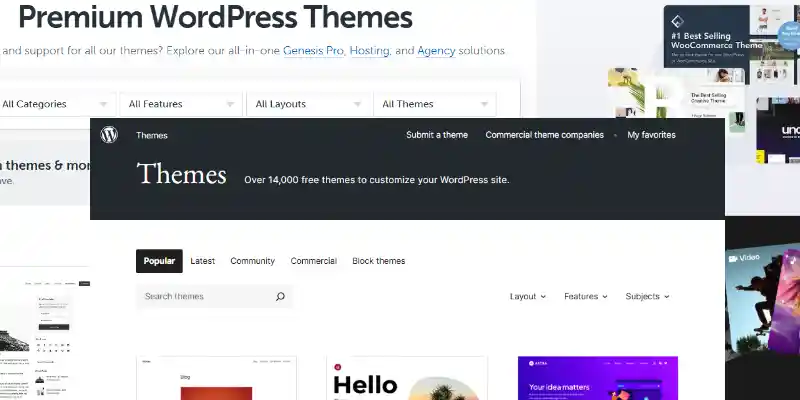
Some WordPress themes may look awesome on the surface but fall apart as soon as you start adding customizations.
Others seem like the best thing since sliced bread, but stifle your SEO efforts with bloated code and horrible site speeds.
I have had to change WordPress themes halfway through a web design project for various reasons.
In the process, I learned what to look out for when choosing the right WordPress theme for SEO.
Key Features of an SEO-ready WordPress Theme in 2026
- Mobile-first and responsive design – We’re in the 21st Century, and many people will view your site on their phones. Your website should look great and work well on all devices.
- Core Web Vitals (CWV) – This is one of Google’s ranking factors in 2026. Pick a theme that’s lightweight and fast-loading with good LCP, CLS, FID, and INP scores.
- Clean, semantic code – Choose a WordPress theme that uses valid HTML/CSS, structured data, and avoids a lot of unused scripts.
- Built-in Schema markup – Go for a theme that supports rich snippets and breadcrumbs.
- Accessibility – Your theme needs to have accessibility features such as keyboard navigation, proper heading structure, and ARIA roles.
- Regular updates and support – This is a no-brainer. Go for a well-documented, supported, and regularly updated WordPress SEO theme.
This is a baseline. The theme you choose should meet your business needs. Besides, you can add most of the above features with WordPress SEO plugins.
Check out the developer’s promotional materials and user reviews, and explore the theme demos.
Better still, contact the developer and ask about speed, SEO, and compatibility with other plugins.
On top of that, always choose the best website host for fast page speeds, regardless of the WordPress SEO theme you pick.
Note: Most of your on-page SEO will come from your content and SEO plugins, not the theme itself.
Pick a WordPress SEO Plugin
This beginner WordPress SEO guide would be incomplete without SEO plugins.
After all, most WordPress SEO features come from plugins.
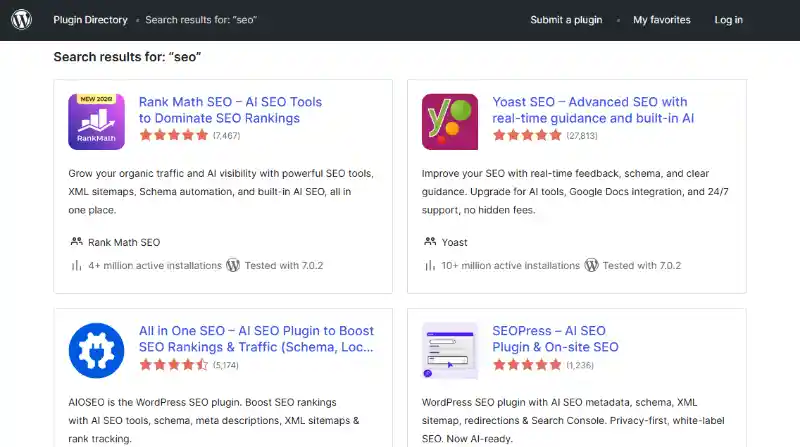
I don’t think SEO for WordPress sites would be possible without plugins, especially for beginners, considering how the platform is set up.
For instance, how would you hard-code features like meta titles, meta descriptions, and canonical URLs into each WordPress post?
How do you check the keyword density and readability?
WordPress SEO plugins come in handy, making SEO accessible to beginners and experienced users alike.
That said, what do you look for in a good WordPress SEO plugin?
Key Features of a Great WordPress SEO Plugin
- Simple setup – SEO is a lot of work, and you don’t need your WordPress SEO plugin to add to that workload. The SEO plugin you choose should be easy to set up. Look for a setup wizard, simple configuration options, and the ability to migrate settings from other SEO plugins.
- Easy to use – Following the previous point, your SEO plugin should be easy to use. You don’t want feature bloat, technical jargon, or a confusing UI to get in the way of your SEO success.
- Technical SEO – Technical SEO for WordPress sites is vital, as we saw earlier. Pick a WordPress SEO plugin that helps you implement technical SEO features such as sitemaps, redirections, and structured data.
- On-page SEO – Go for a WordPress SEO plugin that helps you optimize your content. You’ll use the plugin to optimize meta titles and descriptions, keyword density, readability, and so on.
- Additional features – The more the merrier, right? Pick a plugin that helps you do more than SEO basics. Does the plugin support AI? What about WooCommerce SEO optimization? Integrations?
As we hinted earlier, SEO for WordPress sites is incredibly easy with the right plugin.
In most cases, you’ll point-and-click your way to higher search engine rankings. I’m not kidding. You will hardly write code.
That said, each WordPress SEO plugin is unique, so research to find one that works for your business.
Most people recommend popular WordPress SEO plugins like Yoast SEO, AIOSEO, and Rank Math, but I’m working with a little-known gem called SiteSEO.
Installing the SiteSEO WordPress Plugin
When you install WordPress in InterServer, Softaculous gives you a bunch of premium plugins for free!
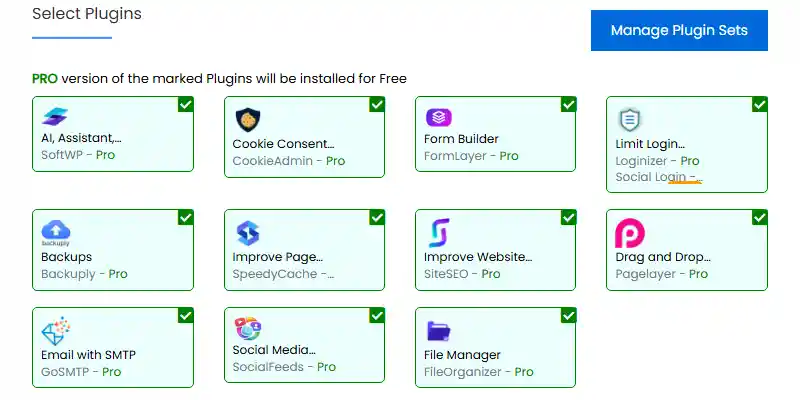
The WordPress plugins include:
- SoftWP Pro – An intuitive AI assistant for your WordPress site.
- CookieAdmin Pro – WordPress cookie notice plugin.
- FormLayer Pro – A powerful WordPress form builder plugin.
- Loginizer Social Login Pro – Protect your login page from attacks, and let users log in with social media accounts.
- Backuply Pro – Keeping regular backups is a must for every WordPress website owner.
- SpeedyCache Pro – One of the best WordPress caching plugins, and one of the reasons this website is superfast.
- SiteSEO Pro – The MVP. Simple but powerful WordPress SEO plugin like no other.
- PageLayer Pro – A page builder.
- GoSMTP Pro – Receive all emails from your WordPress site.
- SocialFeeds Pro – Embed social media feeds on your website.
- FileOrganizer Pro – View and manage your website files in the WordPress admin.
If you’re in the market for a fast website host and want the 10+ plugins above, hurry and sign up at InterServer before the offer expires.
You pay only $30 for the first year of hosting! Or $60 if you spring for the two-year plan.
This is a fantastic offer for beginners or anybody looking to move WordPress sites.
The pro plugins are forever free, of course. Updates and support included. I know this because I updated some plugins and also got support.
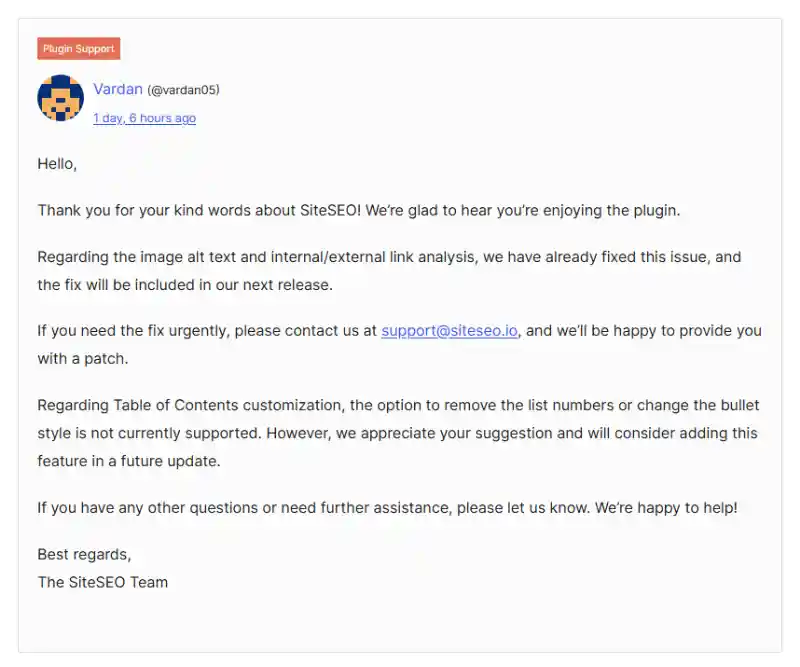
If you have hosting and only want to install the free SiteSEO plugin, it’s simple since it’s available in the WordPress plugin repository.
💰 Money-saving tip: SiteSEO Pro alone costs between $49/yr (one site) and $249/yr (unlimited sites), so the InterServer offer makes lots of sense if you want to save money. I mean, you get super-fast website hosting, SiteSEO Pro, and 10+ premium plugins for just $30. Plus unlimited future updates and support. It couldn’t get better than this!
Let us move on.
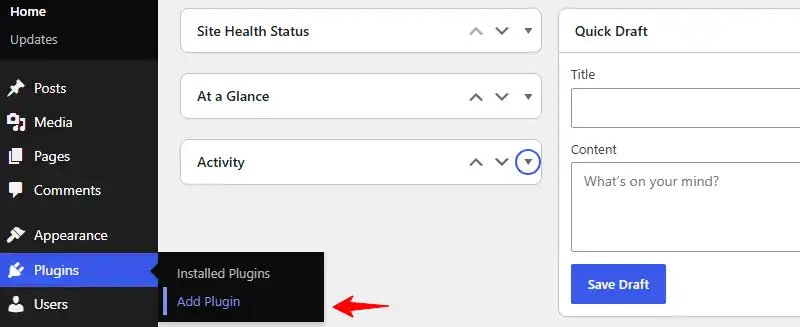
Navigate to Plugins → Add New in your WordPress admin dashboard.
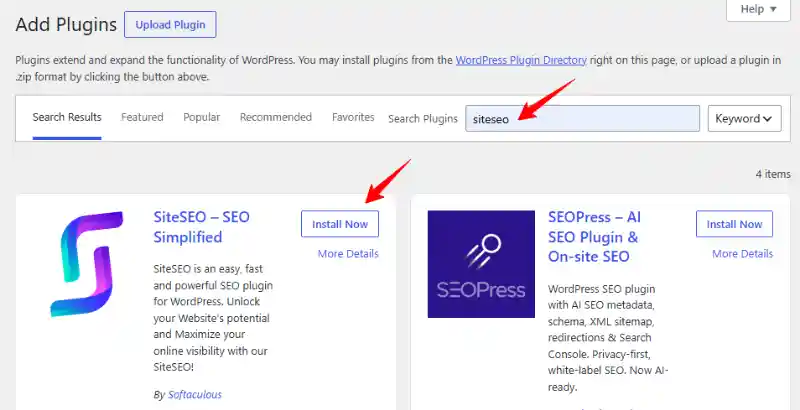
After that, enter “SiteSEO” in the keyword search box and hit Install Now.
Next, hit Activate to get the ball rolling.
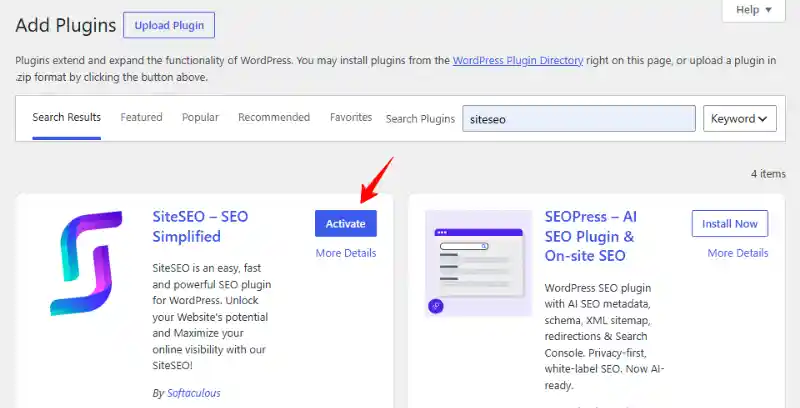
Pro tip: Install the pro version from the official SiteSEO site to unlock all features. With InterServer, you skip the cost and installation.
After activating the plugin, hit SiteSEO on the WordPress admin menu.

This leads you to the SiteSEO dashboard, where you see a ton of WordPress SEO features.
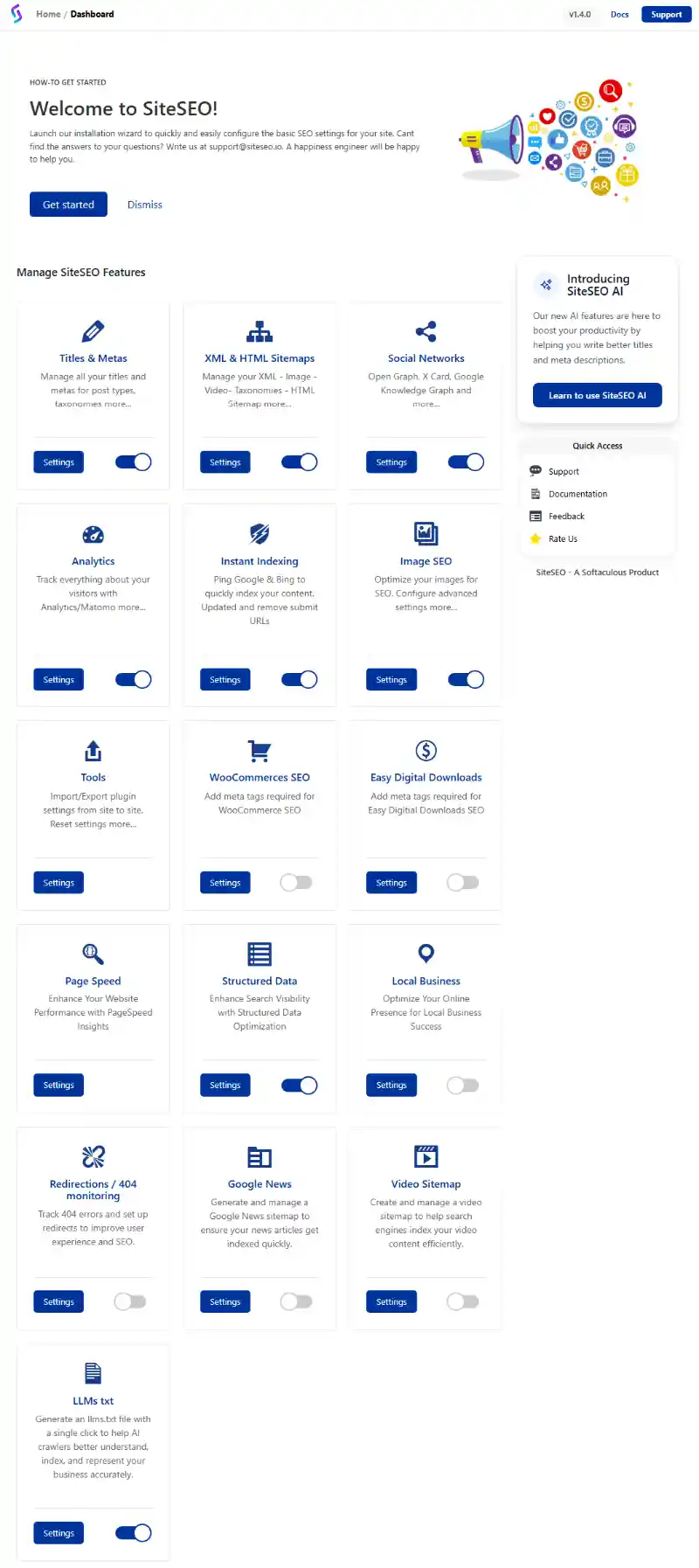
If you’re using the free version, you won’t have access to the following features:
- WooCommerce SEO.
- Easy Digital Downloads SEO.
- Page Speed Insights.
- Structured Data Optimization.
- Local Business SEO.
- Redirects and 404 monitoring.
- Google News Sitemap.
- Video Sitemap.
- RSS Sitemap.
- LLMs.txt.
- And other features.
Now do you see why grabbing SiteSEO Pro for free via InterServer makes sense?
That said, you can always come back to the SiteSEO dashboard to configure any setting.
Also, we won’t go into details as I’ll publish a SiteSEO review soon that covers all features. Subscribe to the free newsletter for updates.
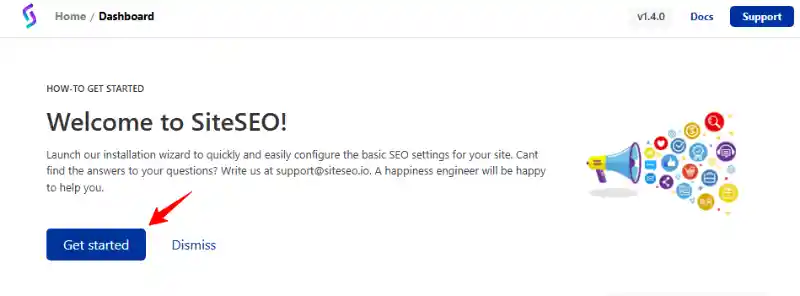
For now, hit the Get Started button to get up and running quickly.
On the next screen, hit Let’s Begin to get the show on the road. You’re doing just fine.
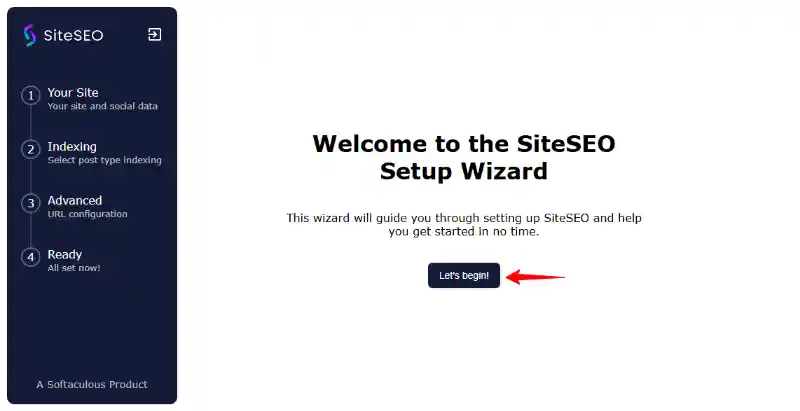
After that, set your site name, organization, logo, and social media links and hit Save and Continue.
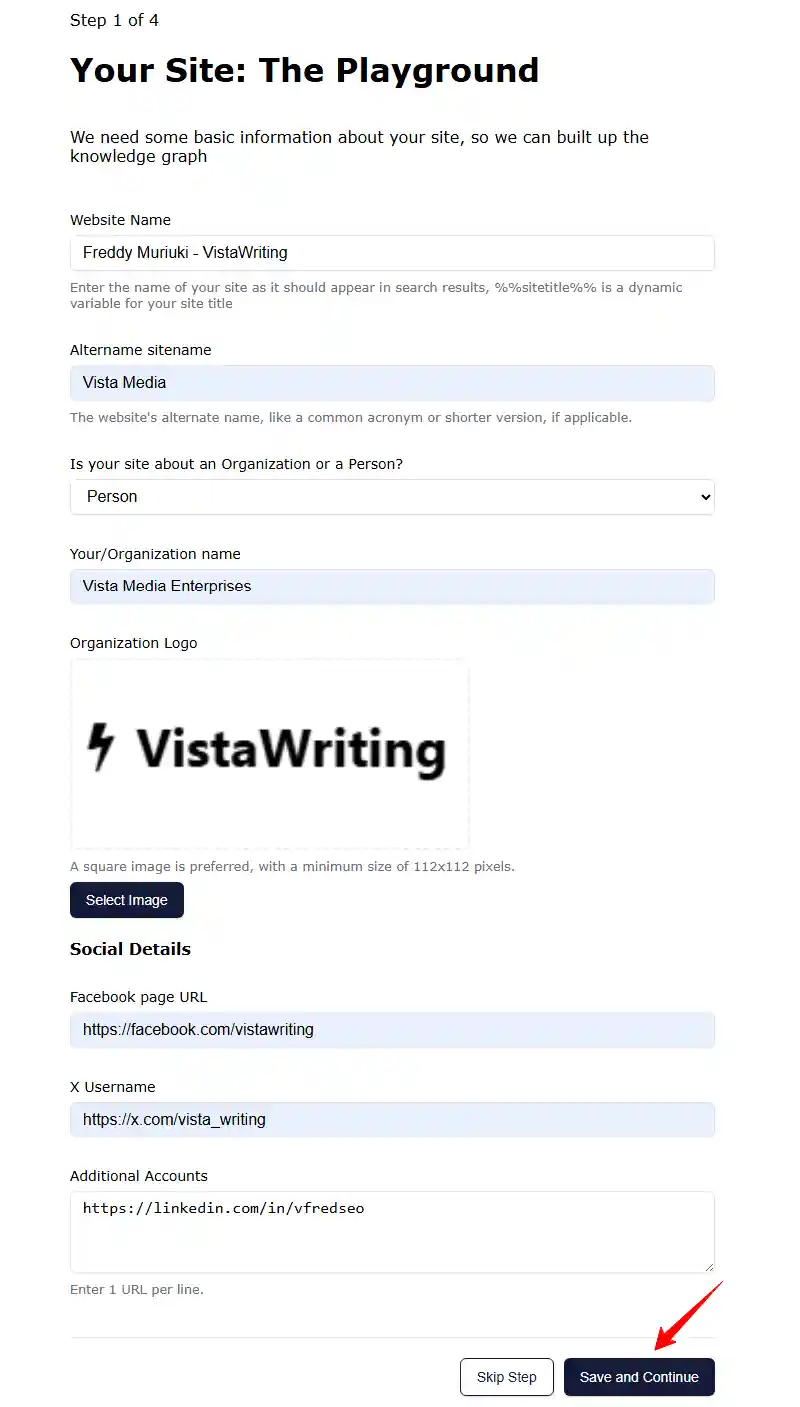
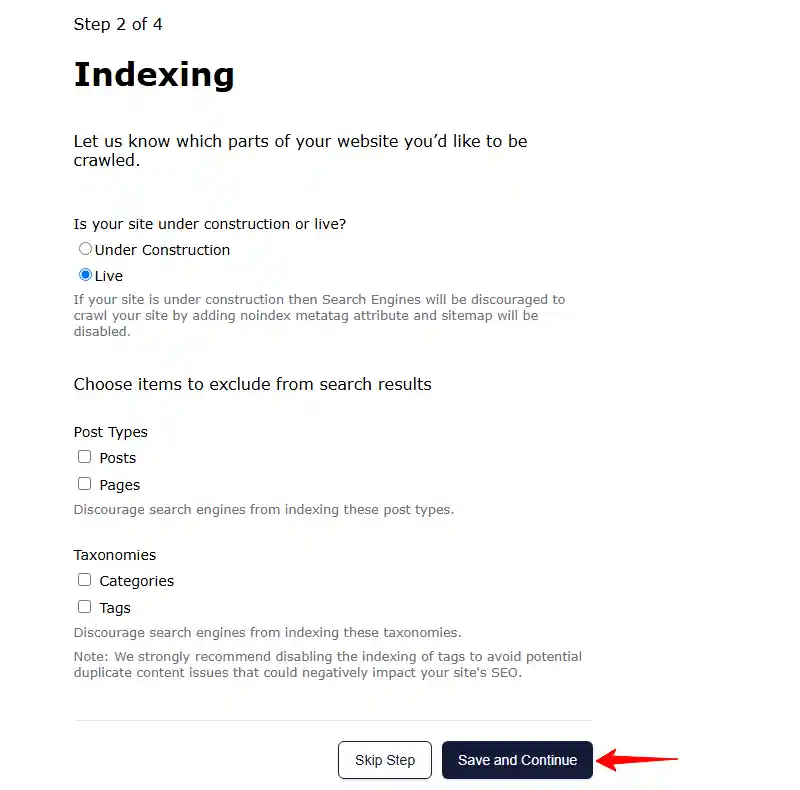
This takes you to a second screen where you can choose which parts of your WordPress website to crawl.
I recommend leaving everything as is and hitting Save and Continue.
On the next screen, the Advanced Options screen, ensure the Universal Metabox is enabled. Hit Save and Continue.
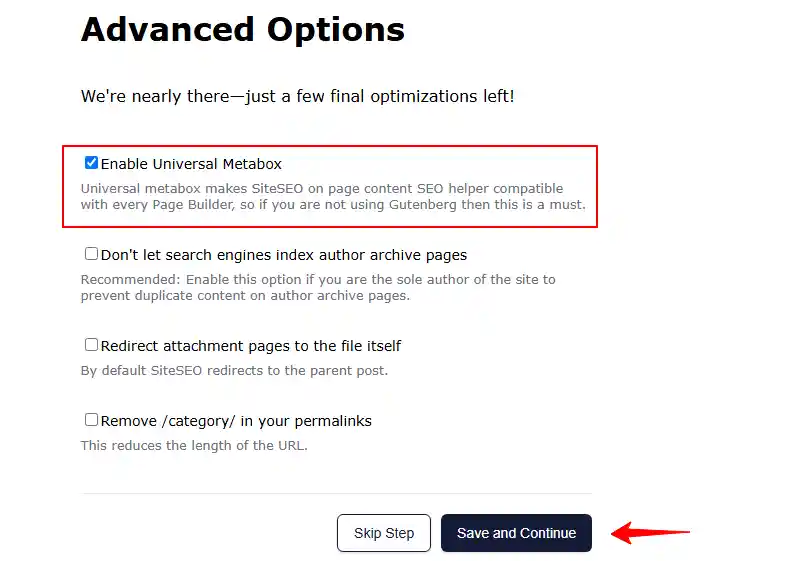
And that’s it! Only three steps, making SiteSEO one of the easiest WordPress SEO plugins to set up and configure.
On the final screen, you can choose to set up your sitemap, go back to the dashboard, review settings, or check out the knowledge base to learn more.
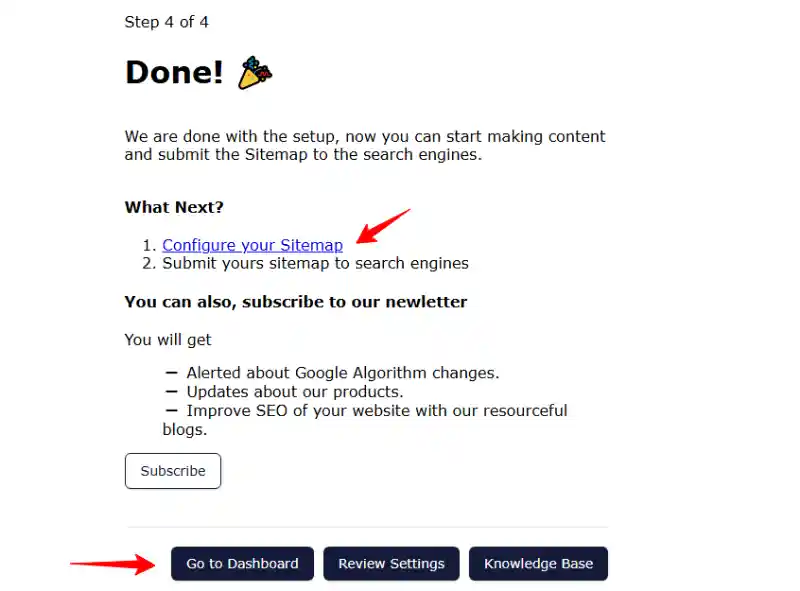
For our case, we will configure the sitemap because I want to show you how to connect your WordPress site to Google Analytics and Search Console next.
Click the Configure your Sitemap link, which opens the SiteSEO Sitemaps page in a new tab.
Check everything, including Author and HTML sitemap, and hit Save Changes.
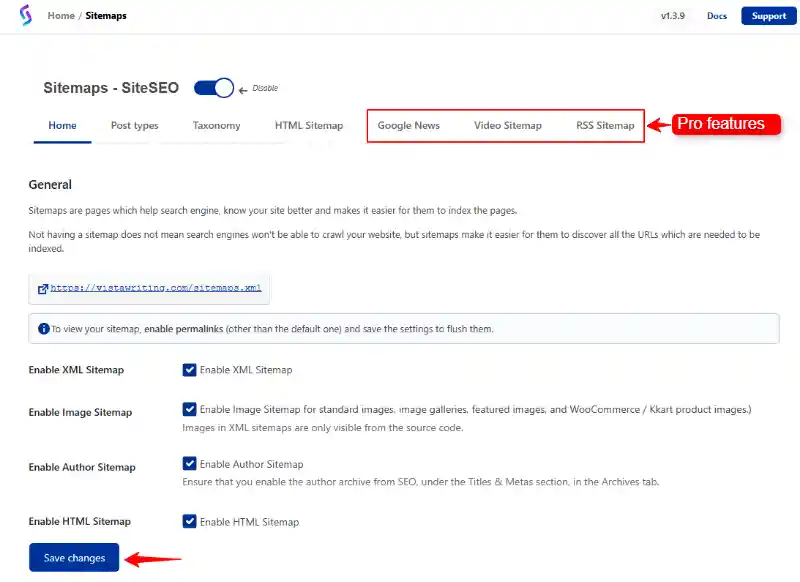
Note: If you have the free version, you won’t have access to the highlighted Pro features: Google News, Video, and RSS sitemaps. Luckily for you, you can land SiteSEO Pro (+10 other plugins) for free with InterServer.
You can view your sitemaps at https://example.com/sitemaps.xml (replace example.com with your domain name).
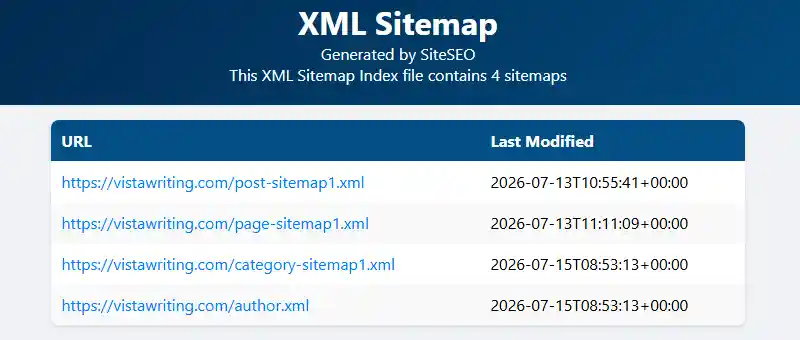
We will add these sitemaps to Google Search Console in the next section. For now, let us connect your WordPress site to Google Analytics.
You can skip this section if you’ve already connected your site to Google Analytics and Search Console.
Connecting WordPress Site to Google Analytics & Google Search Console
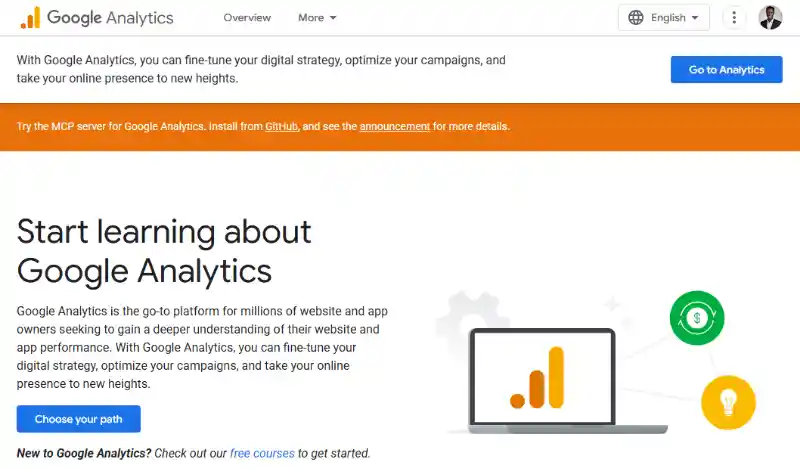
Google Analytics is the de facto traffic analytics tool for a huge chunk of WordPress beginners.
It’s free and gives you a lot of useful information about your website visitors.
According to Google Analytics, the platform helps you to…
…fine-tune your digital strategy, optimize your campaigns, and take your online presence to new heights.
Google Search Console is one of the best platforms to track organic traffic from your WordPress SEO efforts.
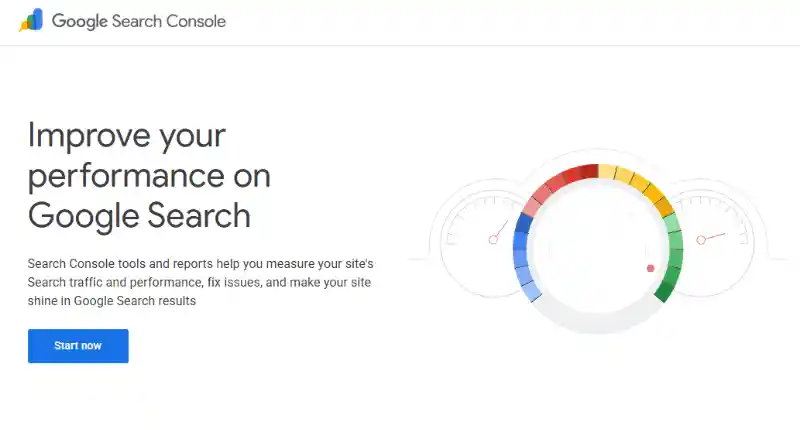
You can gather a lot of information, including the SEO keywords people use to find your WordPress site.
Additionally, Google Search Console allows you to submit your sitemaps and individual pages for crawling.
Or as they put it:
Google Search Console helps you measure your site’s Search traffic and performance, fix issues, and make your site shine in Google Search results.
Now, connecting Google Analytics and Google Search Console to your WordPress site is as easy as pie.
First, go to Google Analytics and sign in with your existing Gmail/Google account.
This takes you to the Google Analytics Admin page. If you don’t see the Admin page for whatever reason, don’t panic.
Instead, open the side menu and click Admin, as shown below.
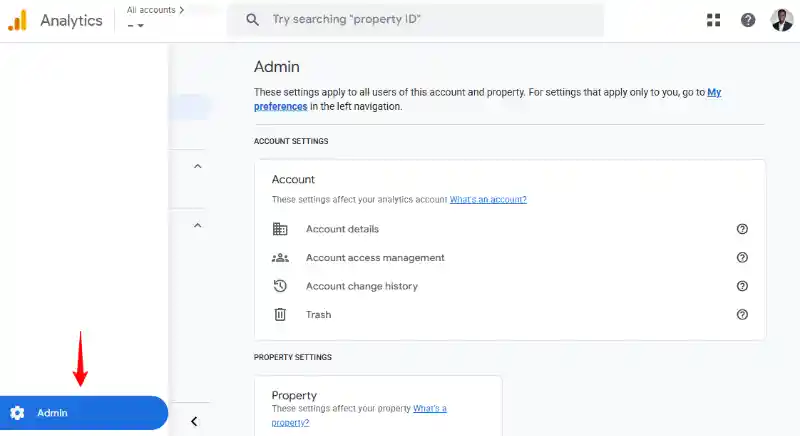
After that, hit the Create button and select Property.
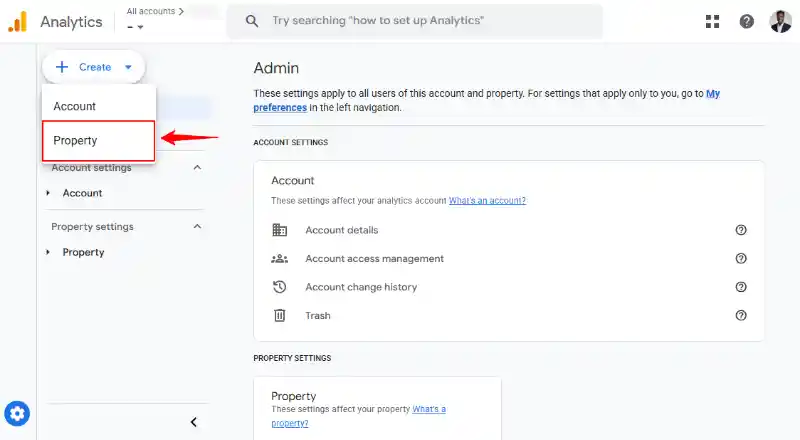
If you made it this far, you’re a true legend, beginner or not.
Next, enter a property name that is easy to remember, and hit the Nextbutton. You can pick anything, although I recommend using your website name or domain.
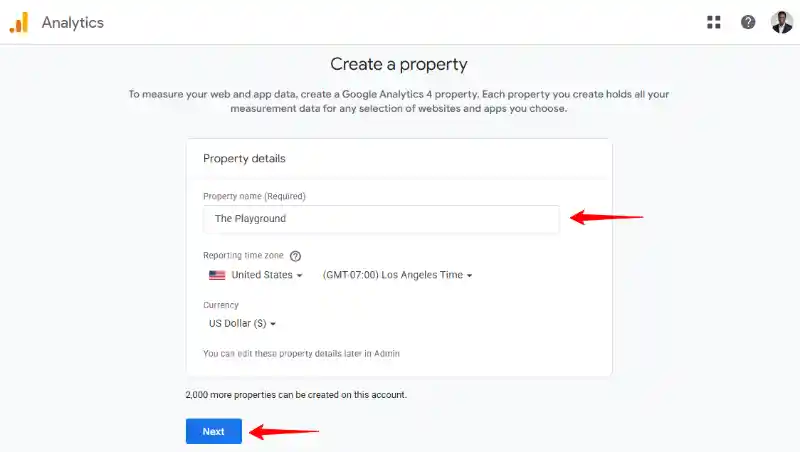
After that, select your business category and size, and hit Next.
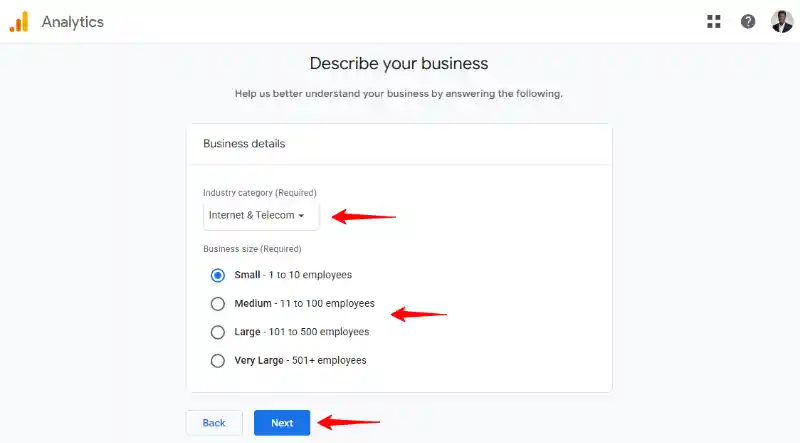
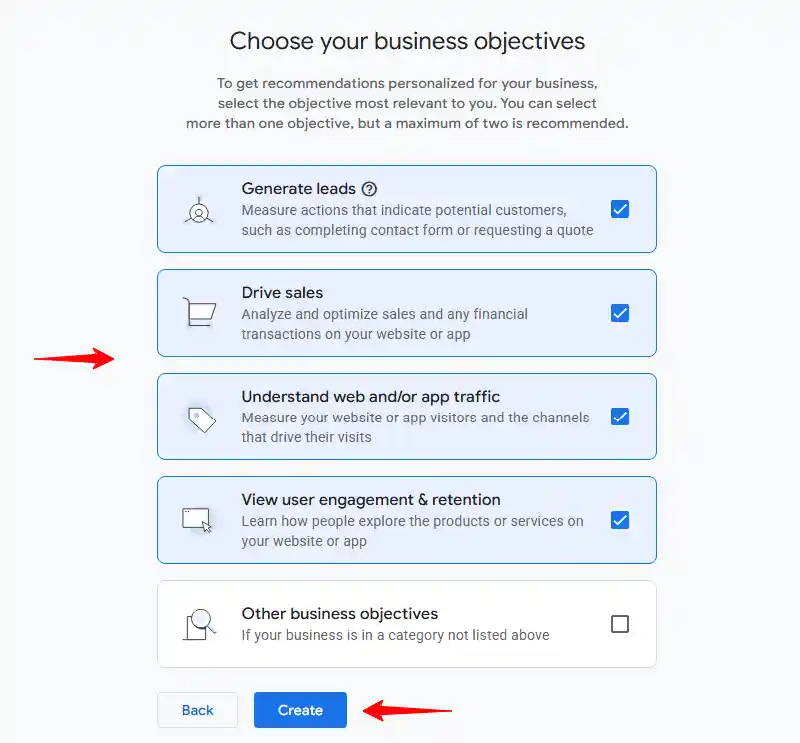
On the next screen, choose your business objectives. For this beginner WordPress SEO guide, I went with the first four.
Choose what’s most relevant to your business, and click Create.
Now you’re ready to start collecting data. You only need to create a data stream.
It’s nothing complicated.
Think of it as a connection between your Google Analytics property and your WordPress website.
Much like how a road connects two towns.
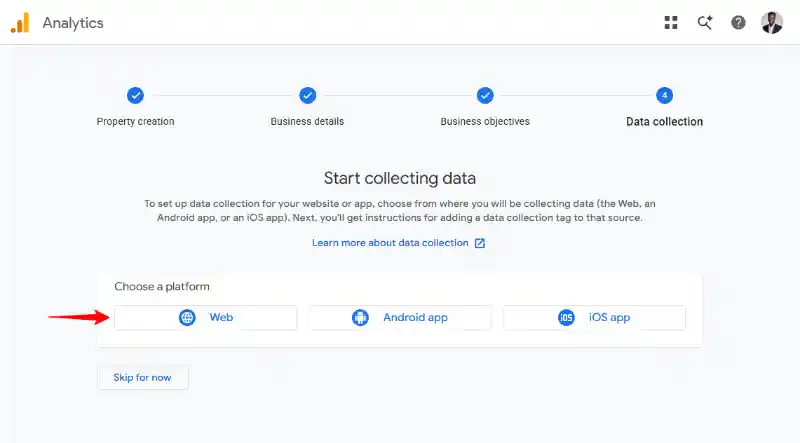
On the next screen, click on the Web button.
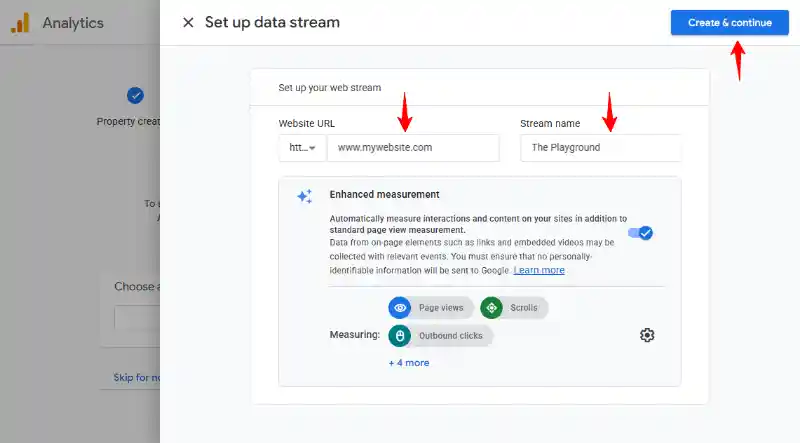
Next, enter your website address and stream name, and click Create & continue.
Take a sip of your coffee (or tea) and chill for about two seconds. Google will show you the following page.
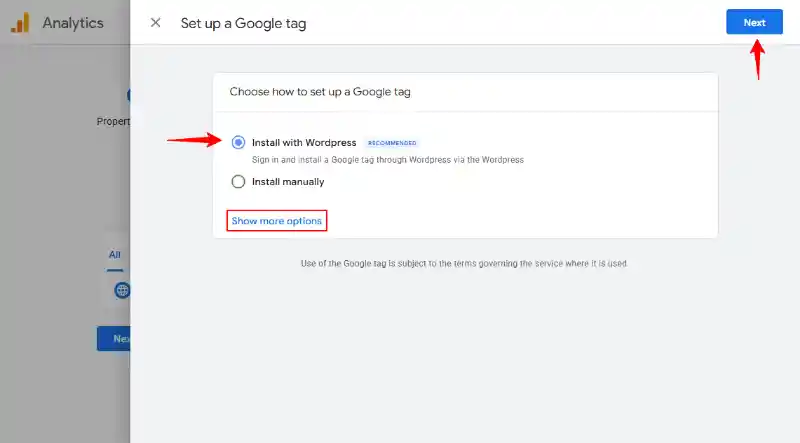
Don’t fret if you can’t see the Install with WordPress option at first.
If you see scary code with the Install Manually option, ignore it and click Show more options to pick WordPress.
We’ll leave manual installation for later when you’re an advanced user and can edit WordPress theme files.
Choose Install with WordPress and click Next, as shown in the image above.
For this beginner WordPress SEO guide, I chose the easiest method to set up the Google Tag, which in this case is option two: the Site Kit plugin by Google.
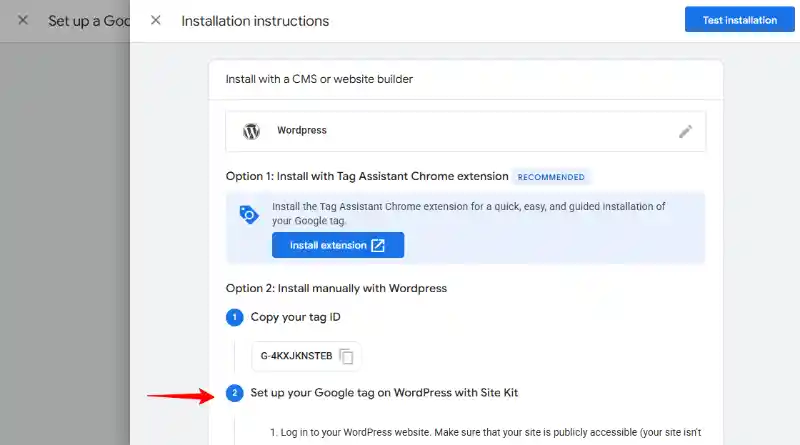
Now for the final part, let us install the Site Kit plugin to connect your WordPress site to Google Analytics without breaking a sweat.
Installing the Site Kit by Google WordPress Plugin
Installing Site Kit is easy because it is available in the WordPress plugin repository.
It’s free and brings your Google Analytics and Google Search Console data into the WordPress admin dashboard, among other things.
Navigate to Plugins → Add New.
Next, type “Site Kit” in the keyword search box and click Install Now.
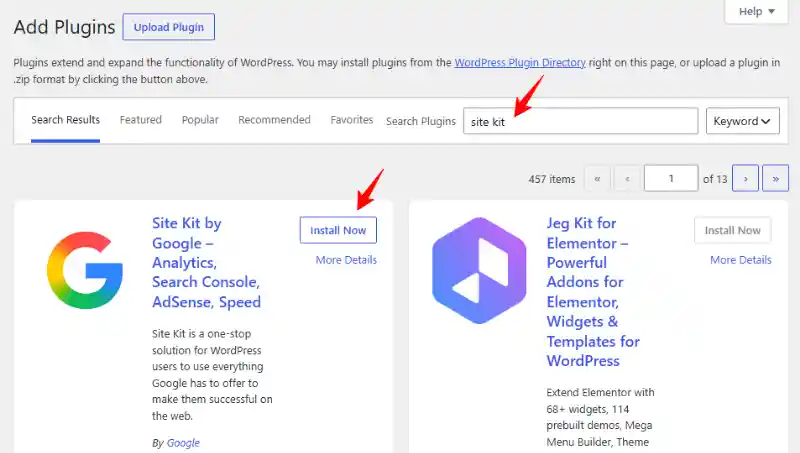
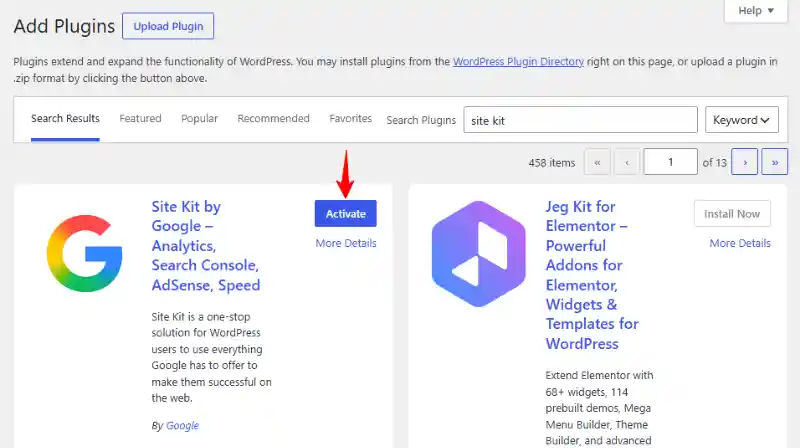
After that, activate the plugin.
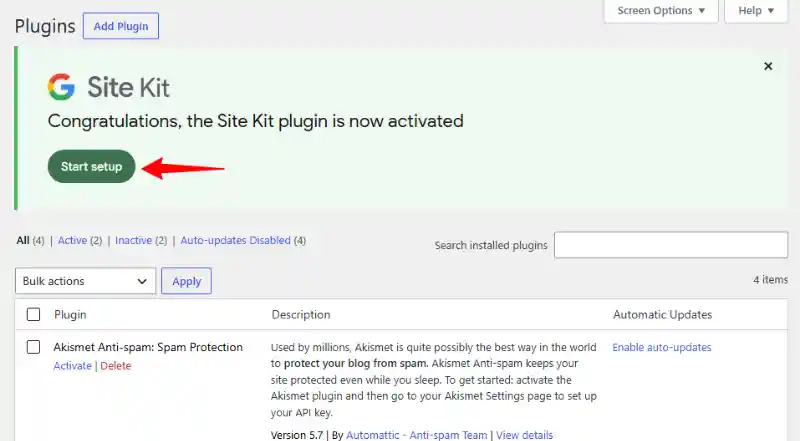
This takes you to the Site Kit setup wizard right in the plugins screen. Click the Start setup button.
On the next screen, choose Google Analytics and click Sign in with Google.
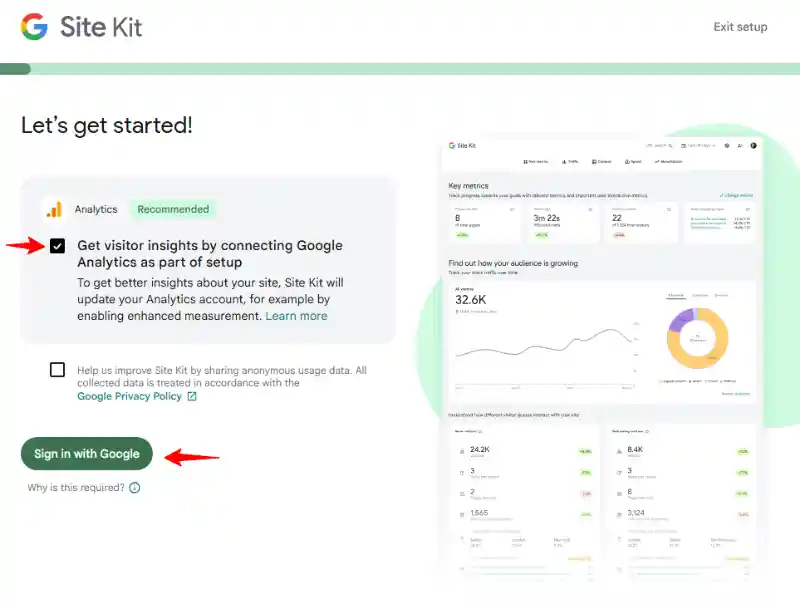
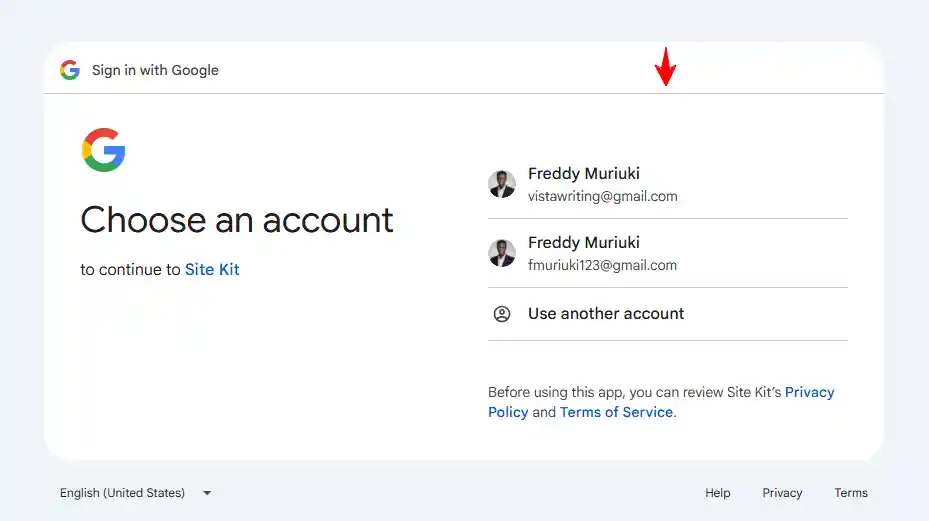
After that, choose the same Gmail/Google account you used for Google Analytics earlier.
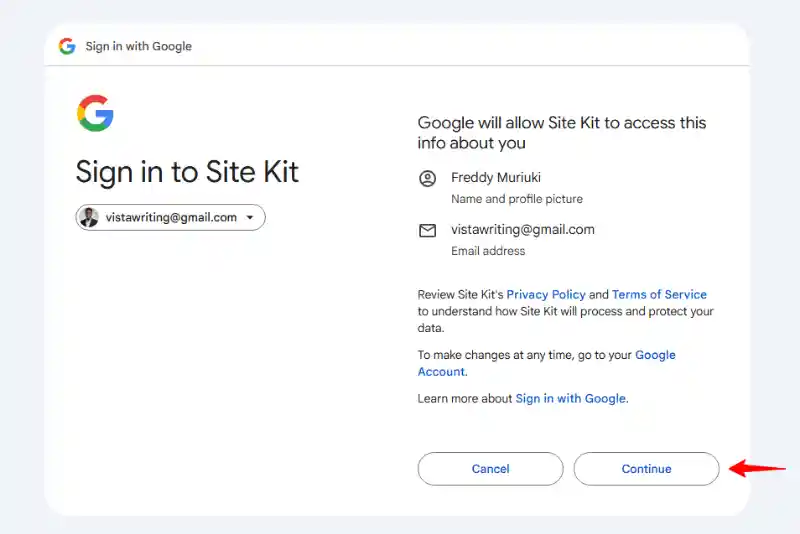
Click Continue.
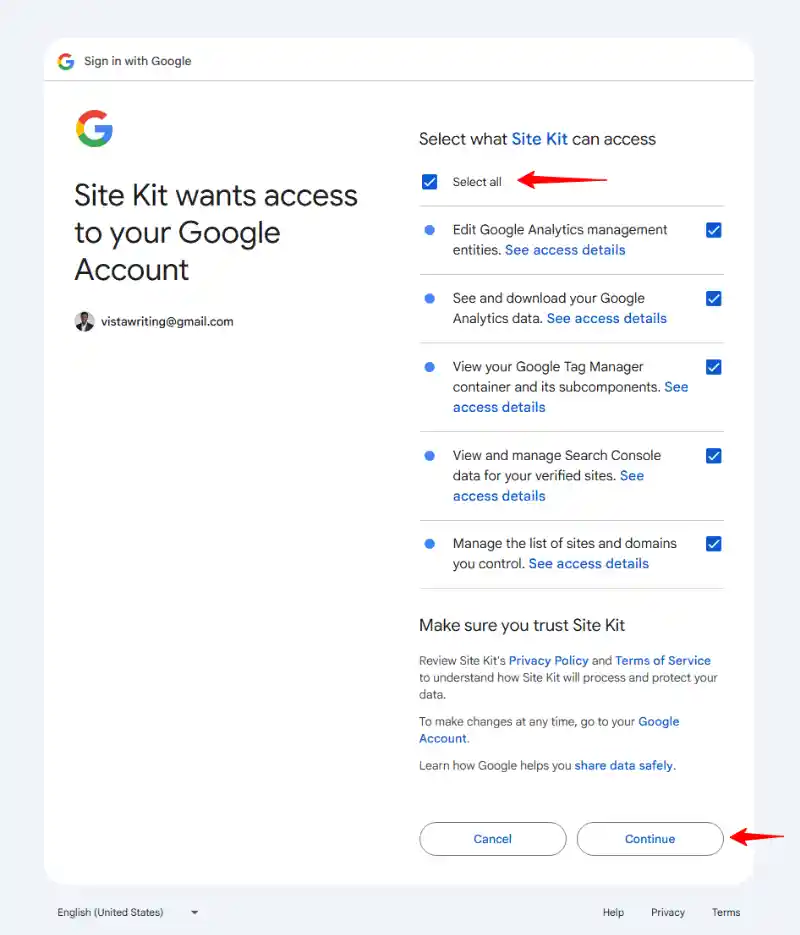
Next, tick Select all to grant Site Kit access permissions needed for the plugin to work, and click Continue.
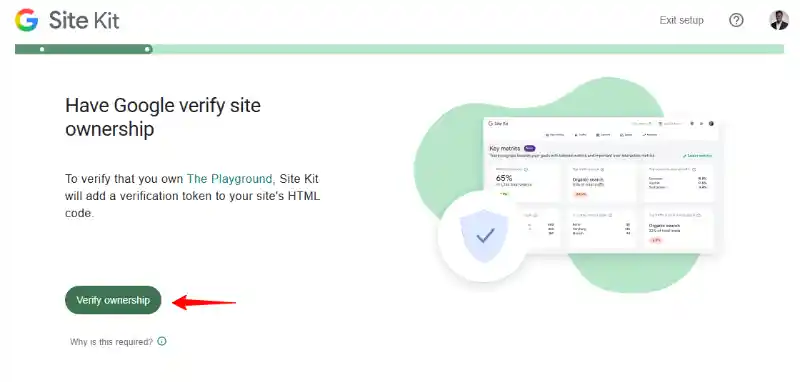
Next, click Verify ownership. See? I told you you’ll point-and-click your way in this beginner WordPress SEO guide 🙂
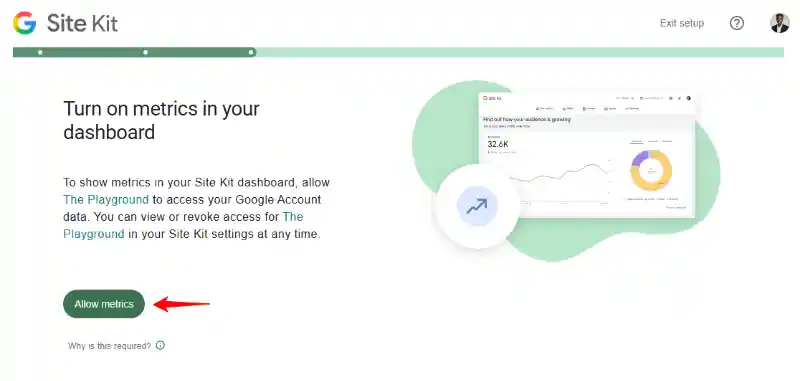
Then click Allow metrics.
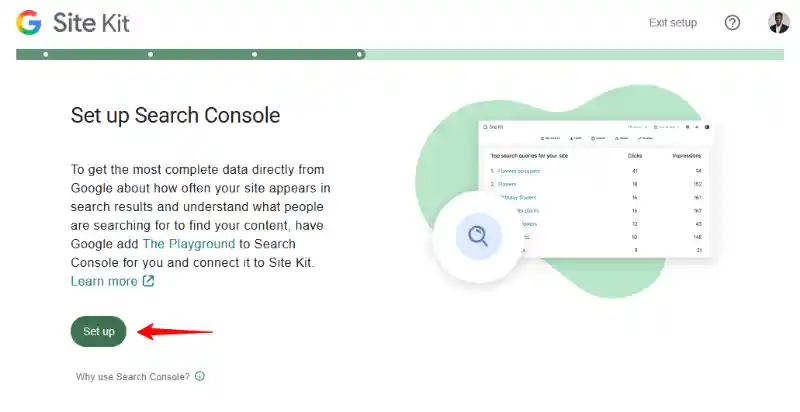
After that, click Set up to connect your WordPress site to Google Search Console.
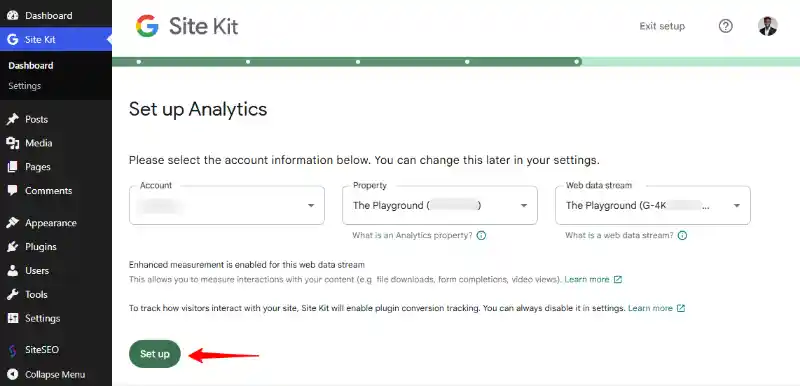
This redirects you to the Site Kit dashboard in WordPress. Hit Next to continue.
What do you plan to do with your website? Sell products? Provide services? Monitize content?
Choose your website’s main purpose and click Complete setup.
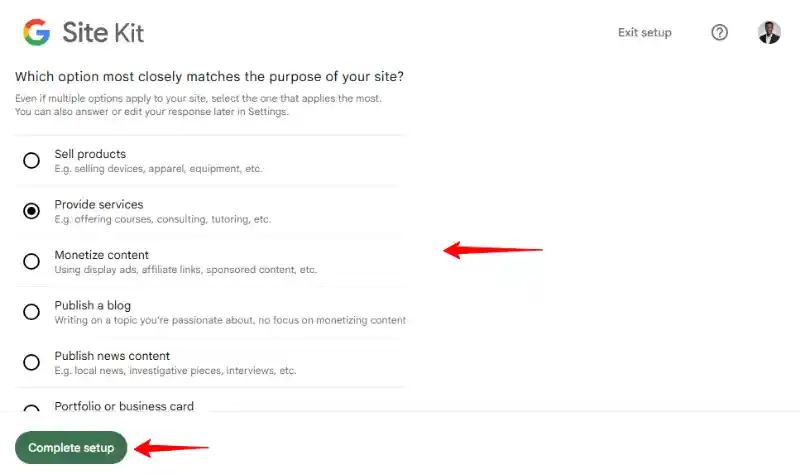
A-n-n-nd that’s it! You’ve successfully connected your WordPress site to Google Analytics and Google Search Console.
Now, you can view your website’s performance in search, submit content for crawling, fix issues, and much more.
You can view your SEO traffic stats in the WordPress admin dashboard or directly in Google Analytics and Google Search Console.
Hit Get started next.
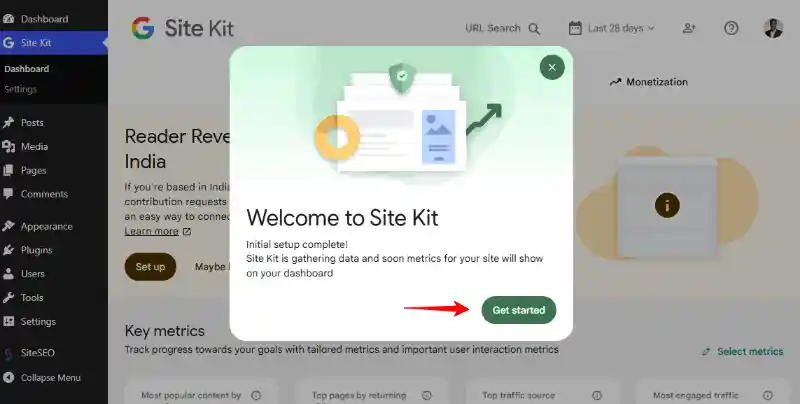
Site Kit will take some time to gather your website data, so let us submit your sitemaps to Google Search Console.
Submitting Sitemaps to Google Search
Do you remember we created sitemaps a few steps back? Well, it’s time to add those to your Google Search Console account.
A sitemap is exactly as it sounds: it’s a map of your website. It is a list of all of your WordPress pages, posts, and so on.
The SiteSEO WordPress SEO plugin offers you four sitemaps by default.
You can further activate Google News, Video, and RSS sitemaps, and adjust a few other settings.
Go to Google Search Console and sign in with the same account we used to connect the Site Kit plugin.
Then navigate to Sitemaps on the sidebar menu, enter your sitemap URL, and hit Submit.
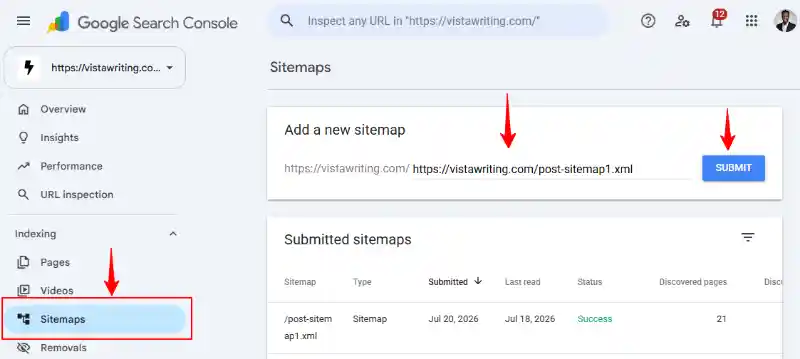
Repeat for all sitemaps.
As we mentioned in the “How Search Engines Work” section of this WordPress SEO guide, Google crawls the web to index content.
That said, submitting your sitemaps makes it easy for Google to crawl and discover your content.
Note that submitting sitemaps doesn’t guarantee indexing, but it sure does help with discoverability and, consequently, SEO rankings.
Remember, Google might crawl and discover content via your sitemaps, but decide not to index your content for various reasons.
One of the biggest reasons is thin content. Google will never index poor-quality content that doesn’t add any value.
Again, see why creating high-quality content matters?
There are several other reasons, as you can see when you check your Google Search Console page indexing report.
But how?
Follow this Page Indexing link and click Open Page Indexing Report.
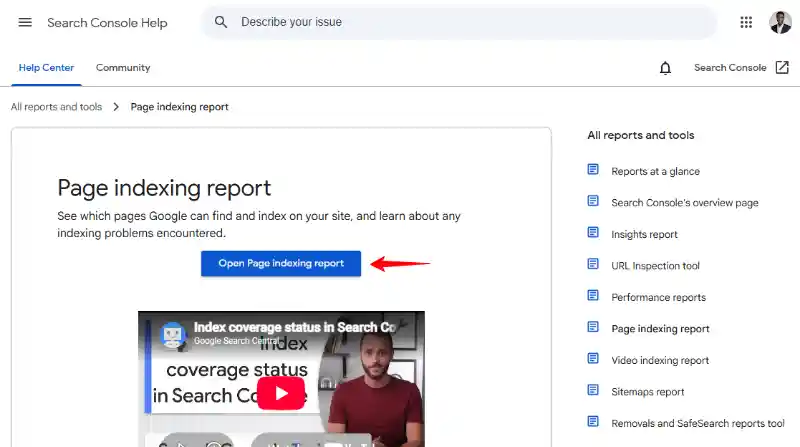
This takes you to your Google Search Console. Click the drop-down menu and choose your property.
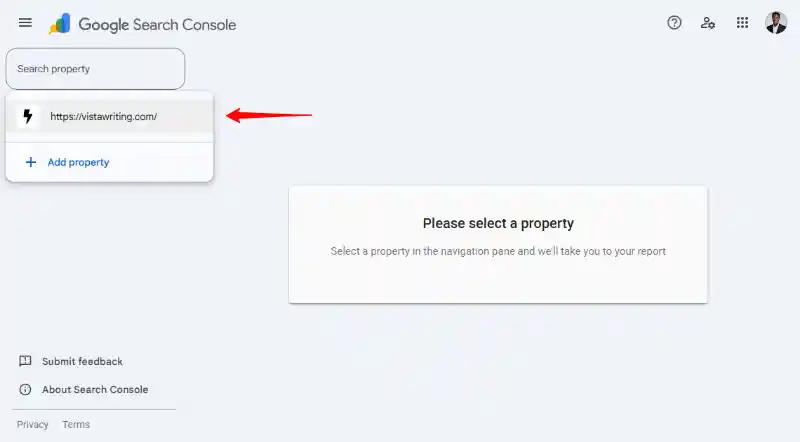
You’ll see the index status of all of your pages on the next page.
Scroll down and click any reason to see more details. For this SEO guide, I chose “Crawled – currently not indexed.”
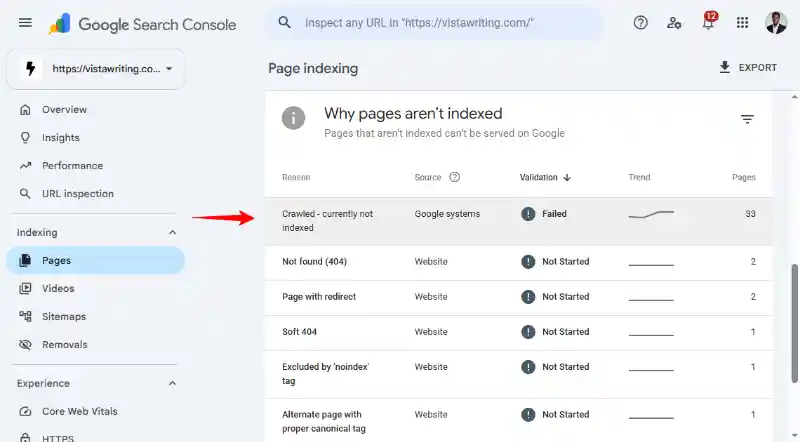
Next, you will see a list of your pages at the bottom. Click on any page to investigate further if need be.
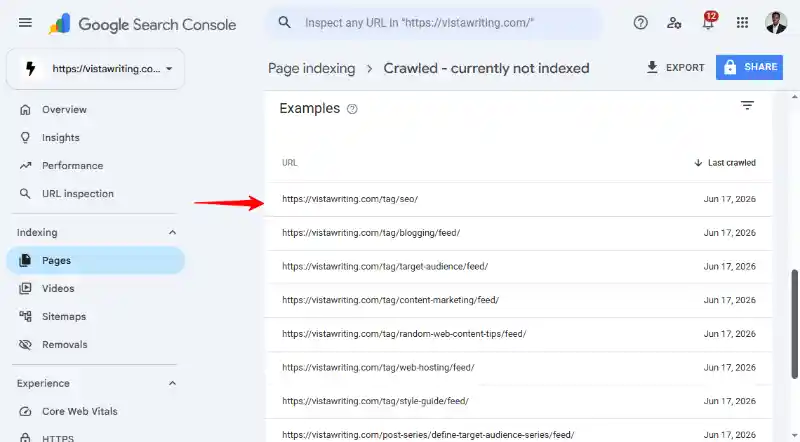
In our example above, most of the crawled-not-indexed URLs are tags, so I really don’t need to fix anything.
Unless, of course, I wanted to rank tags in Google, which I don’t.
In fact, I’m thinking of eliminating tags on this website and organizing content into fewer categories.
Back to Google Search Console page indexing.
When you click any URL, click Inspect URL, as shown below.
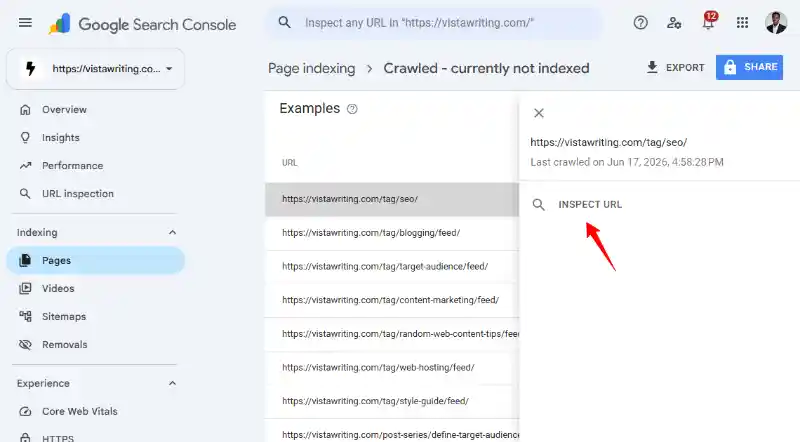
On the next page, you will learn more about this specific page, test the live URL, and even request indexing after fixing any issue you might’ve had.
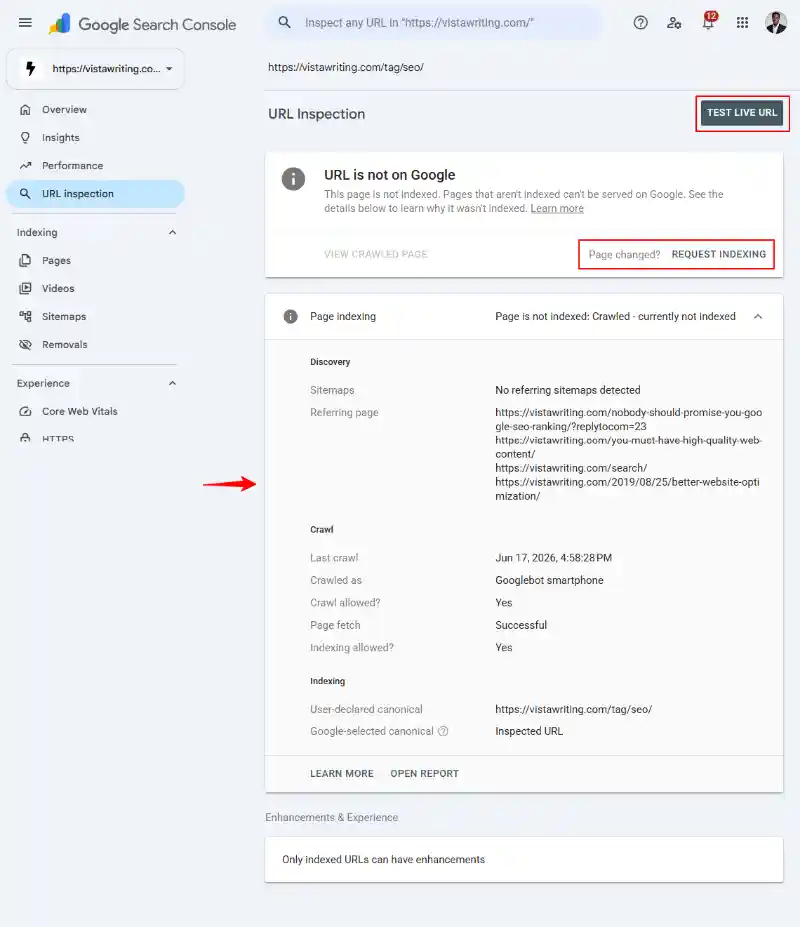
In our WordPress SEO example above, I don’t need to index this tag page, so there is nothing to fix.
Let us move on to the next section of this SEO guide.
Improve Website Speed for WordPress SEO
Have you ever searched for something on Google, clicked on a search result, and found the answer in less than five seconds?
I bet you have, and the feeling was, well, amazeballs, for lack of a better word.
Have you ever also been on a website that took ages to load? And the page just kept loading until you gave up?
I wager you have, and the feeling was, well, as annoying as being stuck in traffic.
If your website takes a round trip to the sun to load, you lose SEO and user experience points.
That’s right, website speed is a vital Google ranking factor. Besides, a slow website sends visitors away.
It’s probably why the search giant created the Google Page Speed Insights tool to help you check your website and increase your page speeds.
I won’t go into the details because I wrote an evergreen guide on How to Decrease WordPress Page Load Time that’s still doing great on Google.
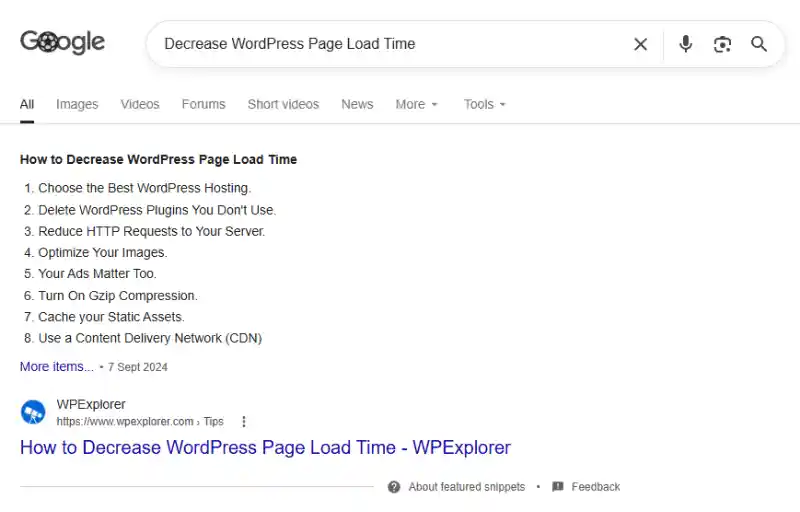
Here are the main points to boost your WordPress website’s speed.
- Choose the best WordPress hosting – Don’t shoot yourself in the foot; start with a fast web host.
- Delete WordPress plugins you don’t use – Other than slowing your website, some plugins can exhaust your server memory, leading to 500 and 503 errors. Get rid of what you don’t need, and replace faulty plugins with better alternatives.
- Reduce HTTP requests to your server – Eliminate unnecessary scripts, combine, minify, and defer CSS/JS.
- Optimize your images – Very important. Don’t use images larger than needed. Also, compress the images into the WebP format before uploading.
- Turn on Gzip compression – You can enable this feature using a WordPress caching plugin.
- Cache your website – The best way to improve your website’s speed significantly. You need a WordPress caching plugin like SpeedyCache, WP Rocket, or WP Super Cache.
- Use a content delivery network (CDN) – Another fabulous way to boost speed and security. Some caching plugins, like SpeedyCache, support this feature.
- And much more!
For this beginner WordPress SEO guide, I recommend starting with a solid website host and caching plugin.
I use and highly recommend SpeedyCache, which you can get for free with the InterServer offer I can’t seem to shut up about 🙂
It’s not my fault either; it’s just so good not to share. Besides, it’s always my goal to help you save money on your WordPress website.
I won’t go into the details because I have a SpeedyCache review lined up that covers everything you need to know about caching.
Besides, SpeedyCache is ridiculously easy to install and configure; you’ll laugh at yourself.
Subscribe to this free newsletter to receive an update when the review goes up.
Moving on, let’s learn how to define your target audience.
Define Your Target Audience for WordPress SEO

I have a quick confession.
When I launched my first website some 15 years ago, I had no idea what a target audience was.
This means I was writing for anybody and everybody. It’s a big blunder, as I came to learn later.
I took the leap of faith because I wanted to make a living online after reading The Alchemist and Think and Grow Rich.
I love writing, so I chose to document the journey and share the lessons I was learning online.
Then I ranked a blog post on the first page of Google as if by accident.
I think it was for the keyword “latest SEO techniques and trends.”
That was quite an eye-opener considering there were many other larger SEO websites back then.
Additionally, I had learned a thing or two about email marketing and created an email sign-up form for my website.
One of the prominent fields on the form was “What’s your main content challenge?” I still have this on my free newsletter form coz it works!
Long story short, my website visitors filled out the form, letting me know their biggest content challenges.
The majority couldn’t figure out how to:
- drive traffic from Google and
- connect with their target audiences on their websites.
And that became my mission ever since: help people drive organic traffic (now that I could rank articles on Google) and connect with their audiences.
This revelation, among other things, helped me to hone in on my target audience.
Over the years, I have refined my understanding of my target audience and can create clear buyer/reader personas.
But here’s the one lesson I learned the hard way.
Starting without a definite target audience delayed my progress in all areas.
I could have ranked on Google and gotten my first freelance writing client faster.
If only I had known to whom I was talking, and more importantly, the problems they were facing.
You can’t write for the entire universe.
The quickest way to dilute your marketing message, confuse prospects, and lose money is writing for anybody and everybody.
If you don’t define your target audience, you miss key demographic data such as age, location, language, education, habits, interests, profession, income, and so on.
Also, you don’t know the problems your readers face and the language they use online.
So, how does this affect your WordPress SEO?
A good question that I will answer with another question.
If you don’t know your target audience, how do you expect to create helpful, reliable, and people-first content that Google and AI tools will like?
I will wait.
Identifying your target audience and the problems they face will help you write content they’re actively looking for.
Content that meets their search intent. Content that will rank high on Google, send people to your site, and deliver conversions like it’s Christmas.
Here are some resources to help you define a target audience for your WordPress website:
- How to Define Your Target Audience (and Create Web Content with a Bang!)
- How to Reach Your Target Audience Right In Their Kitchens
- How to Reach Your Target Audience Again (With Your Web Content)
- Identifying a Target Audience for Your WordPress Blog
- How to find your target audience in 5 steps
Defining your target audience helps you to determine their problems and the terms they use in search engines, which leads us to our next point.
WordPress SEO Keyword Research
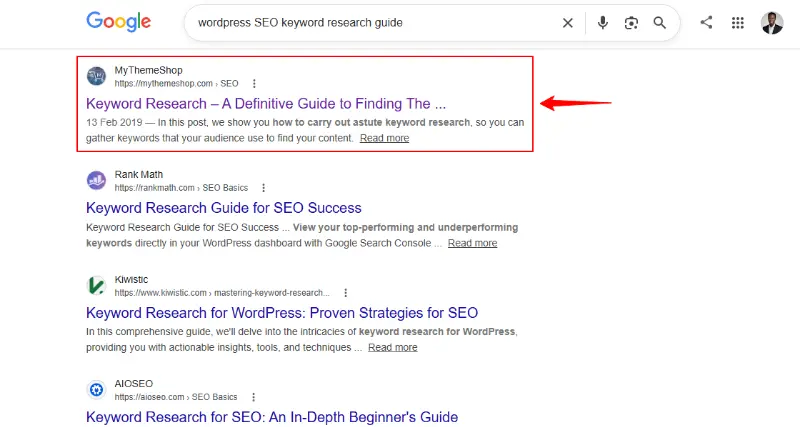
Yep, that’s right. This 10,000-word guide is at number four on Google many years later.
It used to be number one, but the folks at Mythemeshop overhauled the website design and haven’t updated the post in ages.
But, again, I’m not here to gloat.
For a post on keyword research, you know lots of research went into this piece.
Which begs the question: Why is keyword research important in WordPress SEO?
Well, when you write for the web, you’re tempted to create content you think website visitors want.
You end up writing content from your perspective, which isn’t necessarily a bad thing.
The only downside with this approach is you never create the content the visitor needs.
You don’t answer their questions, so they hit the back button and go to your competition.
Without keyword research, you run into a couple of problems. You:
- Don’t know what website visitors want, so you can’t create helpful content Google likes.
- Waste time and marketing dollars on content that doesn’t connect with your target audience.
- Register high bounce (exit) rates that mess with your SEO rankings.
- You create content that will never rank on the first page of Google because you miss the user search intent.
No matter what anyone tells you, the keyword is still a vital Google ranking factor.
What Google frowns upon is keyword stuffing, i.e., pumping a ton of keywords into content trying to game SEO rankings.
Remember, the secret here is to write helpful content based on the keywords/keyphrases people use to find information on Google.
Even without trying, you and Google know this guide is about SEO for WordPress sites and is aimed at beginners.
Plus, the various sections offer practical advice helpful to you, the reader.
How I Do Keyword Research for Top WordPress SEO Rankings
While the above keyword research guide covers a lot, here’s a summary of how you can find the terms your target audience uses in Google searches.
First, you must identify the target audience. Who are you creating content for?
For example, this WordPress SEO guide is aimed at beginners.
This is every beginner looking to rank their WordPress website on Google.
This group is unfamiliar with SEO jargon, meaning I must explain everything in detail.
Secondly, they won’t go to Google and search, for example, “semantic,” “LSI,” or “crawl budget.”
They are more likely to search “WordPress SEO,” “SEO for WordPress sites,” or “beginner WordPress SEO guide.”
And right there, I have my foundation keywords. Or what we call primary keywords.
Note: This is a basic example. Searchers might use entirely different keywords than what you expect, which is why research is important.
From your list, find secondary keywords using SEO tools. Then use a mix of primary and secondary keywords in the post.
One of my favorite free SEO tools is Google Ads Keyword Planner.
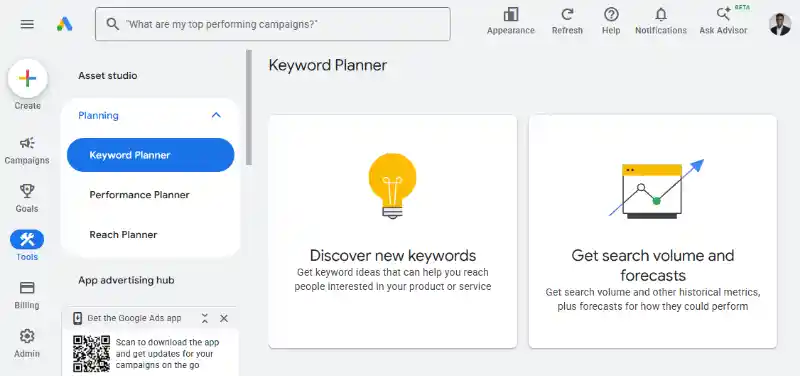
Google Ads Keyword Planner helps you discover the keywords people interested in what you offer use.
Once you enter your primary keywords, you’ll be surprised by the results.
You’ll discover keywords you never thought of, along with search volumes and ranking difficulty, among other things.
Create a keyword spreadsheet in Google Sheets to track everything. Something like this:
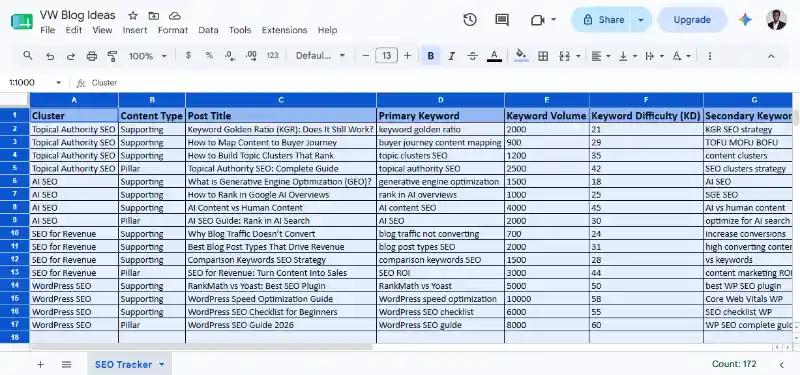
Seems like a lot of work? Not really.
You can use AI tools nowadays to streamline keyword research.
For example, go to ChatGPT and enter the following prompt (replace the website URLs and description with your own. Plus, you can always adjust the prompt for your needs):
Crawl https://vistawriting.com and https://vistawriting.com/blog. The website is dedicated to beginners, website owners, content marketing managers, founders, hiring managers, and CEOs looking to drive organic traffic via SEO to grow revenue. Generate 20 blog post ideas not covered on the blog. Add primary and secondary keywords, including approximate monthly search volume. Important: Make sure the topics are not already covered on the blog. Generate interesting blog post ideas that will rank on the first page of Google.After that, ask ChatGPT to create a file you can import to Google Sheets.
You will have a starting point with such a prompt. Build from there, customizing the results until you have keywords you can run in your favorite SEO tool.
Besides, ChatGPT and other AI tools guide you, but be cautious because they still hallucinate and make up stuff.
Other popular SEO tools include Ubersuggest, Ahrefs, Semrush, and Surfer SEO.
Some WordPress SEO plugins also suggest keyword ideas inside the WordPress post editor.
Another quick source of keywords is your Google Search Console report, as well as the “People also ask” and “People also search for” sections in Google search results.
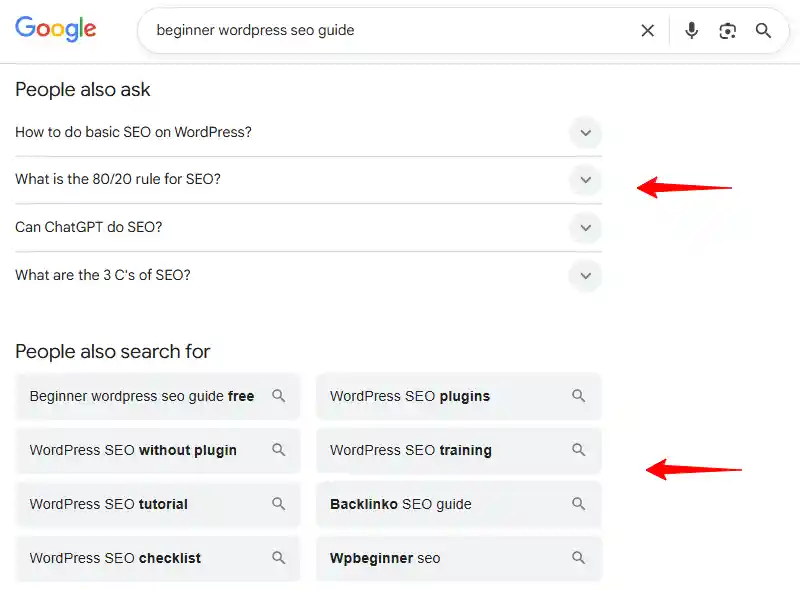
Further, use websites like Answer The Public and FindQuestions for content ideas, keywords, and the questions your target audience is asking.
I will leave this keyword research business at that as I have a post about the topic in the pipeline.
Subscribe for free to receive updates.
Also, here are some resources to learn more about keyword research for SEO.
- Keyword research for SEO: the ultimate guide – Yoast SEO Guide
- How to Do Keyword Research for SEO (Start to Finish) – Ahrefs SEO Guide
- WordPress Keyword Research and Usage for SEO – WPExplorer SEO Post Series
Content is King of WordPress SEO
You already know how search engines like Google work. Remember crawling → indexing → serving results?
This means Google would close shop if website owners like you stopped creating content.
Google also has another bigger problem that never goes away.
The Internet being what it is, anybody can whip up a website and post whatever they want.
While this freedom is good, it means Google has to contend with large volumes of low-quality content, including AI slop.
Yet, good ol’ Google needs to serve searchers the most useful and relevant information for every query.
How does Google approach this?
Over the last 15 years, Google has worked so hard to improve its ranking systems.
Today, you won’t rank if you throw an article together hurriedly, stuff keywords, and buy links, which, quite ironically, worked in the past.
Google’s automated ranking systems are designed to prioritize helpful, reliable information that’s created to benefit people, and not content that’s created to manipulate search engine rankings. – Google Search Console Documentation.
The guide linked above shows you exactly how to create content that Google likes.
In a nutshell, Google recommends creating helpful, reliable, and people-first content that demonstrates E-E-A-T.
E-E-what?
E-E-A-T is short for experience, expertise, authoritativeness, and trustworthiness. Check out the Google guide I quoted above for more info.
Creating amazing content is the way to go, but you still need to SEO-up WordPress posts and pages.
How?
Good question.
How to SEO Optimize WordPress Posts and Pages
Optimizing individual pieces of content in WordPress is remarkably easy thanks to SEO plugins.
You don’t need to wrangle with complicated code or settings to optimize your WordPress post or page for search engines.
Most WordPress SEO plugins come with options boxes that appear below the post or page.
These boxes might also appear in the sidebar, helping you optimize content long before hitting the Publish button.
For instance, the SiteSEO plugin I use adds the following boxes to the Gutenberg editor.
https://youtu.be/O0od_qkWK6kA plugin such as SiteSEO allows you to optimize SEO elements like:
- Meta titles – Write interesting and succinct titles that contain your primary keyword. Can’t write titles to save your life? Try the free MonsterInsights Headline Analyzer.
- Meta descriptions – These appear on search results pages (SERP), so make them engaging to boost click-through rates (CTR). Include your keywords and call to action (CTA).
- Social media snippets – These are the excerpts that will appear on social media platforms when you share the post/page. Make them interesting.
- Readability – Make your content easy to scan and navigate. Use short paragraphs, headings, bullet lists, tables, expert quotes, and so on.
- Multimedia content – Add videos and images to boost content value. Optimize images for fast loading and alt text. Also, name image files appropriately, e.g., wordpress-seo.jpeg instead of IMAGE072326.jpeg.
- Linking – Add both internal and external links to your blog posts.
- Fix broken links – Fix broken links across your WordPress website.
- Add structured data types – Specify schema types like blog post, news article, review, product, recipe, etc.
- Include a table of contents – This is especially useful for long-form articles and guides.
In other words, create fabulous content you’re proud of. Helpful and reliable content meant for human readers, not search engines.
Remember to use your keywords in the article sparingly. Add the keywords in your meta title, description, headings, image alt text, and image file names.
Sprinkle keywords (not keyword stuffing) throughout your content so everything reads naturally.
It’s best to mix primary and secondary keywords. And don’t forget long-tail keywords that are three to four words long.
What about keyword density? How many times should you include your keywords in your content?
There is no rule for this.
People obsess over keyword density, but here’s what Matt from Google says:
https://youtu.be/Rk4qgQdp2UAGoogle’s software is intelligent enough to tell what your post or page is about. You don’t need to ruin the user experience with walls of keywords.
Write naturally, and have a conversation with your readers.
Create amazing content, and optimize various elements using a WordPress SEO plugin, and the higher rankings will follow.
Writing for search engines is like putting the cart before the horse. It’s a waste of time.
Write, instead, for people, and Google will reward you with higher SEO rankings. I can almost guarantee that.
This WordPress SEO guide is peppered with links to brilliant resources, meaning you have all you need to rank your website first on Google.
As days go by, I will publish various articles to support this guide.
We will cover, at a deeper level, areas like:
- On-page SEO.
- Off-page SEO.
- Technical SEO.
- AI SEO.
- All SiteSEO features.
- SpeedyCache full review.
- Defining your target audience.
- Keyword research.
- Link building.
- And so much more.
I will also keep updating this guide with new material to keep it fresh and valuable for you.
I urge you to subscribe to my free newsletter to receive updates whenever I publish something new.
🎁 Bonus: You also get The Ultimate Web Content Style Guide free upon subscription.
FAQs
Frequently asked questions about WordPress SEO.
What is WordPress SEO?
WordPress SEO involves improving your website to rank higher on Google and other search engines. SEO revolves around content, site structure, and speed.
Do I need an SEO plugin for WordPress?
Not always, but it helps a lot. Some people use plugins, while others prefer manual setup. A WordPress SEO plugin (like Yoast or SiteSEO) makes things easier. Using a plugin is the easiest way for beginners to implement SEO.
Why isn’t my WordPress site showing up on Google?
Usually, this happens because your site is new, you haven’t submitted your sitemaps, and your content isn’t optimized. Besides, ranking first in search results takes time. According to Google, it might take more than six months to see results.
What is the most important part of SEO?
Great content, and nobody should tell you otherwise. Focus on helpful, relevant, and people-first original content. If you answer people’s questions clearly, Google is more likely to rank your website higher.
How do I choose keywords for my WordPress site?
Keywords are the terms people use on Google to find what you offer. To choose good keywords, consider what your audience is searching for, use tools like Google Ads Keyword Planner, and pick long-tail phrases. For example: Use “WordPress SEO for beginners” instead of “SEO,” which is harder to rank for.
Is SEO a one-time or ongoing task?
SEO is ongoing work. Many beginners think you can “set it and forget it.” Nothing could be further from the truth. You must update old articles, add new content, and improve your site over time. Think of SEO like a garden – it needs care to keep growing.
What are the basic SEO things I should fix first?
Start simple with the basics. First, write helpful content. Then use clear meta titles and descriptions, clean permalinks, add headings, images, links, and make your site fast. SEO can feel challenging, but start with the basics and improve as you go.
Conclusion: Your WordPress SEO Journey Starts Now
If you’ll take one thing from this guide, it’s this: WordPress SEO isn’t about black hat tricks or shortcuts.
Oh wait, there’s one more thing lest I forget: Content is king, baby.
In its most basic form, SEO is about creating content really well and consistently.
Plus, you don’t need to master everything overnight.
Start simple. Set up your site properly (technical SEO), find good keywords to create helpful content (on-page SEO), reach out (off-page SEO), and keep improving as you go (track and measure results).
That’s how real SEO growth happens.
Another thing: a lot of beginners overlook this, but your website speed plays a bigger role than you might think.
If your site is slow, your content will struggle to rank. Additionally, visitors won’t stick around long enough to read it.
Quick side note: I host this site on InterServer, and I’m genuinely impressed by how fast and smooth everything feels.
If your site is slow, please check out their offer. Not a must-do right now – but one of those small upgrades that makes everything else easier.
Plus, you save lots of money and get 10+ premium plugins!
For now, focus on progress, not perfection. Remember, also, SEO takes time, so be patient.
But don’t wait around forever. Instead, go ahead and publish your next post.
Then optimize your website and content using what you’ve learned here. Then do it again. And again.
That’s how WordPress SEO starts working for you.
Consistent effort over time pays off, and when SEO starts bearing fruit, the effect snowballs.
And before you know it, you’ll look back and realize you’re no longer a beginner.
Cheers to your success, and please don’t leave without commenting or sharing the post.
See you around.

This Post Has 0 Comments